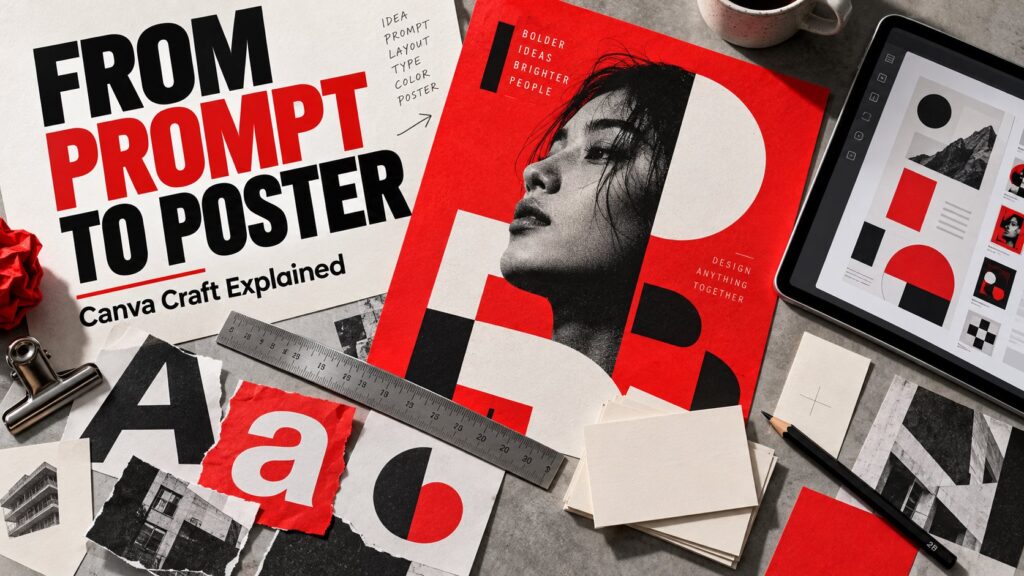
You need a launch graphic by the end of the afternoon. The image looks attractive, but the headline is too small, the product is crowded against an edge and the design falls apart when cropped for a phone. This is where image generation becomes a design task.
Canva Craft is Canva’s new image generation model built with design work in mind. Its announcement describes a system that plans a composition before rendering it. For bloggers, marketers and small teams, the practical question is whether that produces an asset that needs fewer repairs before publication.
Canva’s current announcement page is dated October 23, 2026. This article explains the release, then walks through a reusable design brief and review method. We have not independently benchmarked Craft; the example prompts below are editorial suggestions, not reported test results.
What is new—and what is still a promise
According to the official Canva Craft announcement, the model separates composition planning from image rendering. The plan covers relationships such as placement, scale, hierarchy and text. Canva describes output up to 2K, support for more than 30 aspect ratios, and access through Dream Lab and its public API.
The announcement connects Craft to Magic Layers for turning generated imagery into editable design elements. It lists Craft-fast and Craft-ultrafast as upcoming variants, and labels the Canva MCP connection as coming soon. Those future items should be kept separate from the stated launch access.
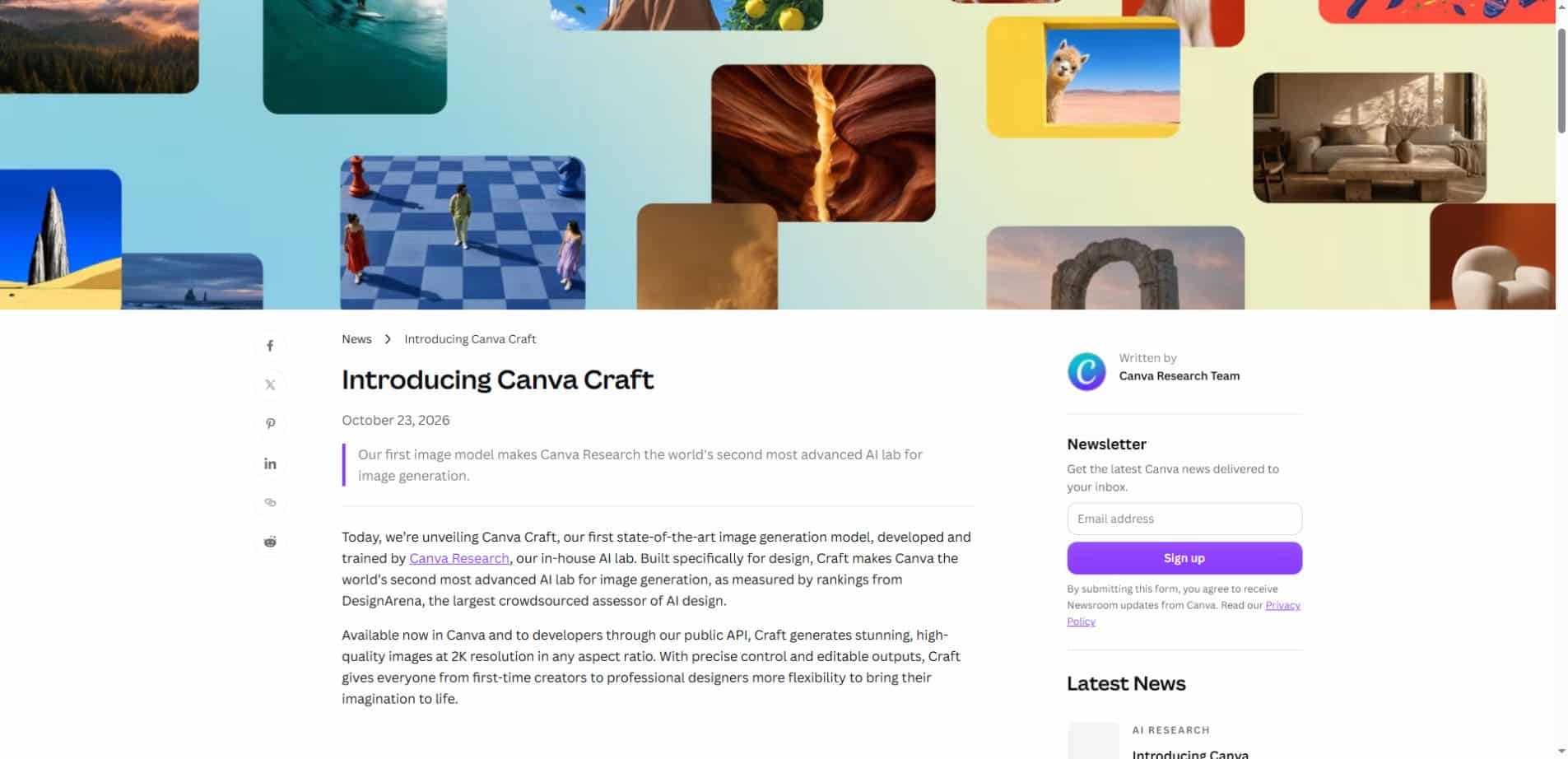
Canva also makes ranking claims based on DesignArena. A leaderboard can be a useful signal, but it does not establish that the model will handle your brand, wording or export requirements reliably. This guide therefore focuses on checks you can repeat with your own brief rather than treating a ranking as a buying decision.
Give the model a brief a designer could use
An effective brief names the audience, message and destination. “Make a beautiful poster” leaves the model to invent all three. If the result looks wrong, you may not know whether the problem is the style, layout or underlying message.
Start with a fictional example: a local repair workshop wants a landscape banner inviting people to bring broken household items. The main action is to attend an event. The graphic should make that action easy to recognize before viewers examine the decorative detail.
Example brief: “Create a landscape community-event graphic for a repair workshop. Use the exact headline ‘FIX IT TOGETHER’. Show a realistic worktable with hand tools and a repaired lamp. Keep the headline large and readable, reserve clean space for event details, and use a restrained charcoal, cream and red palette. Avoid extra slogans, invented dates and logos.”
This request specifies the job without pretending that every detail belongs in generated pixels. The reserved area gives a person room to add the verified date, address and organizer information as editable text.
Our context engineering guide explains the same broader principle: relevant constraints help an assistant solve the intended task. In visual work, the intended use and what must remain editable are part of that context.
Decide which words belong inside the generated image
A short decorative headline may be reasonable to experiment with. A phone number, offer condition, timetable or website address deserves stricter handling. One incorrect character can make an otherwise attractive asset unusable.
For business-critical details, add and verify editable text in the design editor. This makes later changes easier and avoids regenerating a whole composition just to correct a date. It also lets the designer control typography and spacing directly.
Even if an image model renders the headline correctly once, inspect the exact final export. Letter shapes, punctuation and small text may look acceptable at a large preview size but become unclear when the graphic is displayed as a thumbnail.
The five-minute review before you publish
First minute: does the message survive at a small size?
View the design at roughly the size your audience will see. A featured image often appears much smaller in a blog listing than on an editing canvas. If the message depends on fine print, simplify it.
Ask another person what they noticed first. If they name a decorative object instead of the intended headline or action, the visual hierarchy may need adjustment. This is a practical review suggestion rather than a formal usability study.
Second minute: check spelling and factual details
Read every visible word slowly. Compare names, dates, prices and addresses with the approved brief. Do not assume that a realistic-looking poster contains real or accurate information.
For the repair-workshop example, an invented certification mark or event sponsor would be a failure even if it made the design look professional. Remove unsupported claims and unnecessary badges.
Third minute: inspect the edges and objects
Check hands, tools, shadows and repeated objects for visual inconsistencies. Look for accidental fragments near the border. A defect hidden in a busy composition may become obvious after cropping or printing.
If the image represents a real product, compare it with the product itself. A model-generated approximation should not silently replace the actual shape, controls or included accessories in an image that customers may use to decide what to purchase.
Fourth minute: test the crop
A landscape banner, square post and vertical story have different composition needs. Resizing the file does not automatically solve those differences. Keep important subjects and words away from likely crop boundaries.
For a blog cover, consider keeping a short headline within a central safe area while allowing decorative background to extend outward. For a vertical format, a separate composition may be clearer than squeezing the original layout into a taller frame.
Fifth minute: confirm the final file
Inspect the exported image, not only the editor preview. Check dimensions, compression, text clarity and the background against the destination page. For a website, also add descriptive ALT text that explains meaningful visual content without turning it into a list of keywords.
The phrase “2K” is not by itself a print specification. Pixel dimensions, physical print size and the printer’s requirements all affect the result. Confirm the actual exported file and intended output before ordering physical materials.
Why editability matters after the first generation
In its Canva Research introduction, Canva emphasizes that design involves relationships between imagery, text, layout, brand context and human direction. The lab describes Magic Layers as a way to break a fixed composition into elements that can be revised.
That is a useful distinction between a finished-looking image and an adaptable working file. A good-looking flat image can still be costly to update when a client changes the headline or asks for another format.
When evaluating a layered workflow, test the edits you actually expect to make. Can the headline be replaced cleanly? Can an element move without leaving a visible gap? Does the layout remain coherent after changing the copy length? These questions are more informative than merely confirming that a layer panel exists.
Choose generation or manual editing for the right part
| Task | A useful starting approach | Final check |
|---|---|---|
| Explore a visual concept | Generate several distinct directions | Choose against the brief, not novelty alone |
| Add precise event information | Use editable text | Verify every character |
| Show an actual product | Begin with approved product imagery | Confirm appearance and accessories |
| Create another format | Revise composition for that destination | Inspect crop and reading order |
| Make a small correction | Try a targeted edit | Check that unrelated elements stayed intact |
Try one controlled comparison instead of endless prompts
Choose a single brief, then compare a small number of outputs. Keep the required wording, dimensions and subject consistent. Change only the design direction when you want to assess stylistic options.
- Write down the non-negotiable requirements before generating.
- Record which requirements each result satisfies or misses.
- Measure the time needed to repair the chosen image.
- Inspect the export at the real display size.
- Keep the original brief so later revisions remain comparable.
This helps avoid an appealing but inefficient loop in which each regeneration changes the goal. The most useful measure is not how impressive the first output looks; it is whether the finished asset communicates correctly and can be updated without unnecessary rework.
Access, limits and questions to resolve
Where do you find Canva Craft?
Canva directs users to Dream Lab and developers to its developer platform. Check the current product interface and documentation for your account. Broad availability does not by itself establish unlimited generations or identical allowances on every plan.
Is Craft the same as Canva ProSuite?
No. The Craft announcement concerns an image model. Canva’s separately named ProSuite announcement concerns a connected suite of creative tools. Similar wording is not evidence that the products, access terms or features are interchangeable.
Can you skip review if the model understands design?
No. A composition can look polished while communicating the wrong message. Keep human review for accuracy, audience fit and final presentation. Our guide to AI overreliance explains why a confident output should still be checked against the actual task.
A good result is one you can confidently use
Canva Craft’s planning-first approach makes composition an explicit part of image generation. For everyday creators, the useful test is whether it reduces the distance between a clear brief and a reliable final asset.
Start with one real task, protect important wording and leave time for the final export review. Follow official updates for access and future variants, and compare wider AI news coverage with the product documentation before relying on a promised capability.
Reviewed October 26, 2026. Release details are attributed to Canva’s official pages. The brief, review process and comparison method are editorial guidance; we have not independently tested Craft’s performance. The featured artwork is an editorial illustration, not a Craft-generated sample.