An AI subtitle translator can turn an English subtitle file into Spanish, French, or another language while keeping the original timing. That saves you from rebuilding every cue, but the translated text still needs to fit the time available. A fluent sentence can be a bad subtitle if it disappears before anyone can read it.
This guide follows one file from export to playback. You’ll see which parts of an SRT must stay fixed, how to review the translation, and what to do when the timing looks right in the file but feels wrong on screen.
Start with the subtitles you already have
Export a subtitle track from the final cut of your video. An SRT is a plain-text file made up of numbered cues: each cue has a start time, an end time, and the text displayed during that interval. A blank line separates cues. Keep an untouched copy before you translate anything.
If you only have a video or an untimed transcript, create and correct a timed track first. Listen for names, numbers, and words that automatic captions misheard. Translating a faulty transcript can make the original mistake harder to spot.
Pick the right input. A subtitle translator works on an existing timed track. Transcription creates a track from speech. Dubbing replaces or supplements the spoken audio. Decide which deliverable your audience actually needs.
See what changes inside an SRT file
In this example, the speaker gives directions. The translator changes the spoken line and keeps the cue number, timestamps, and blank-line boundaries. The original says “Take the trail on the left.” The Spanish cue reads:
17
00:00:42,200 --> 00:00:44,500
Toma el sendero de la izquierda.
The cue has 2.3 seconds on screen. If a longer translation is hard to read in that window, first look for a natural shorter wording that preserves the instruction. Change the timing deliberately in a subtitle editor only if the wording needs more room and the picture, speech, and neighboring cues allow it.
Translate a sample before processing the whole video
Choose about a minute with a fast speaker, a proper name, and a sentence spread across more than one cue. A simple greeting can make any tool look good. A tricky sample tells you whether it can keep meaning and rhythm when the subtitles get crowded.
Give the tool the target language and locale, plus a short glossary. For a hiking tutorial, you might specify that “Ridge Loop” is an official trail name that stays in English. Include the surrounding cues when you revise an individual line so that pronouns, tone, and repeated terms stay consistent.
A prompt for a short, non-sensitive sample
Translate the SRT dialogue into neutral Latin American Spanish. Preserve cue numbers, timestamp lines, and blank lines. Use nearby cues for context and keep proper trail names unchanged. Use concise, natural phrasing without dropping instructions or numbers. Return only the SRT text. Do not add Markdown fences.A chat tool can help with a short excerpt, but its output can still omit a cue or alter a timecode. For a long track, use a subtitle editor or translator that keeps timecodes separate from the text it translates, and verify the exported file. Check whether a service sends caption text to an external provider before using it for client material or unreleased footage.
Review the subtitles in two passes
First compare the files. Match cue counts and confirm that the same start and end times appear in the same order when you expect unchanged timing. Check for missing text, broken accents, or extra lines introduced by copying from a chat window. Save the result as plain text in UTF-8 with the .srt extension.
Next watch the video with the translated track, preferably once with the sound off. A technically valid file can still have hurried cues, awkward line breaks, or unclear references. Ask a fluent reviewer to check words that change the meaning: “before” versus “after,” “left” versus “right,” and any measurements or dates.
| What you notice | What to check | What to change |
|---|---|---|
| Subtitles get later as the video plays | Does the file match this exact cut and runtime? | Start from a track made for the final cut. |
| Everything is early or late by the same amount | Is there a fixed offset from a new intro or trimmed start? | Apply a deliberate timing offset in an editor. |
| One cue is too fast to read | Is the translation longer than the available screen time? | Shorten the line, then review the cue and its neighbors. |
| Accents appear as symbols | Was the file exported as plain UTF-8 text? | Re-export and test it in the destination player. |
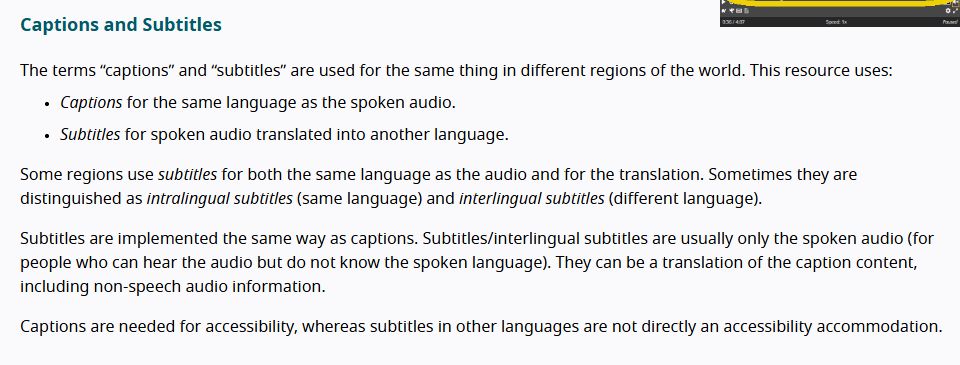
If the source captions include meaningful sounds or speaker labels, keep them in an accessibility track. A viewer who cannot hear the audio may need a cue such as “[doorbell rings]” to understand why someone leaves the room. See the W3C guide to captions and subtitles for the distinction.
Upload the translated track and play it back
For a YouTube video you manage, open its subtitles in YouTube Studio and add the target language. Choose the timed file upload option for your SRT. YouTube’s supported caption formats lists basic SubRip as a supported format, so avoid relying on styling tags to carry important meaning.
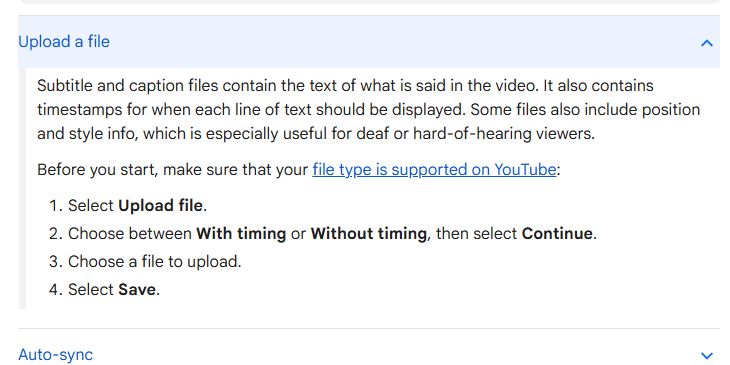
Use the YouTube Studio subtitle instructions to find the upload controls. Preview the language track on the final video, check a few points across its runtime, and verify the correct language is selected. For web players that require WebVTT, convert the reviewed track and test it there. Renaming an .srt file to .vtt does not convert it.
Keep the source and translated track as separate files, such as trail-tour.en.srt and trail-tour.es.srt. If the video changes, identify which version each track was built for before reusing it. For creators still planning footage, our AI video prompts guide covers the earlier step of planning shots and motion.
Questions about AI subtitle translation
Can I translate subtitles without uploading my video?
Yes, if you already have a timed subtitle file. A file-based workflow can work from the SRT alone. The subtitle text itself can still contain confidential information, so check where it is processed.
Do translated subtitles have to keep the same timestamps?
Use the original timestamps as the starting point. Retiming can be appropriate when the translation needs more reading time, but review neighboring cues and the video after any change.
What should I do if an SRT upload fails?
Check the file extension, UTF-8 encoding, and timestamp formatting. Inspect the first failing cue for a missing blank line or an incorrect arrow, then re-export from a subtitle editor if needed.