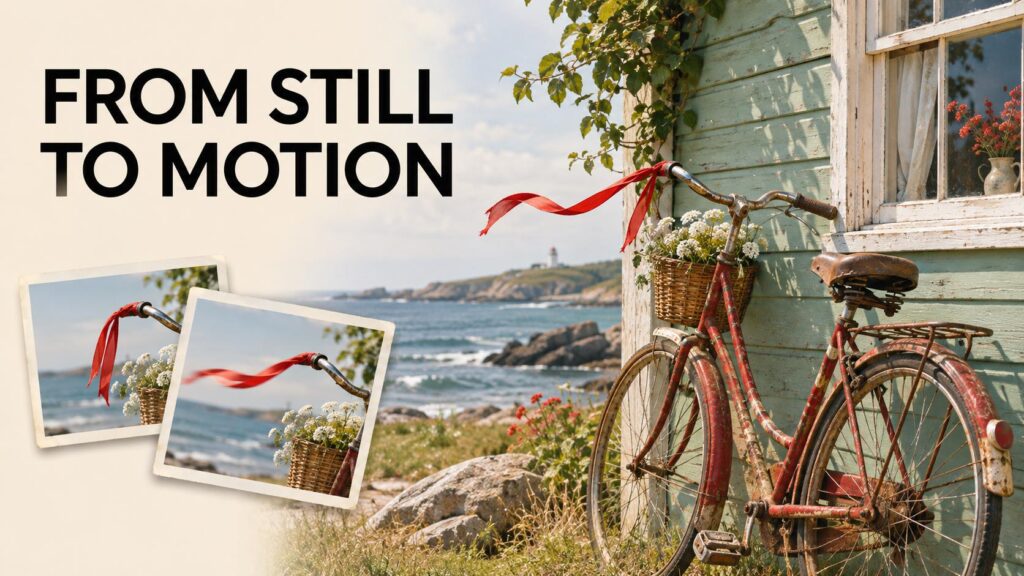
A still photo of a bicycle outside a cottage can become a quiet establishing shot or a close reveal of the handlebars. Both clips can start from the same image. The difference is the action you describe and what you ask the camera to do.
Good image-to-video prompts describe the movement a viewer should see. Decide what moves, how the camera behaves and what the shot should look like at the end. A short instruction gives you a clear baseline for the next attempt.
Start with a still that supports the shot
Look at the photo before writing. Where is the subject facing? Is there room in the frame for it to move? What is already sharp? A very tight crop leaves little space for an actor to step sideways. A wide view lets you introduce movement while keeping the setting legible.
Use a starting frame with the composition you want to see at the beginning of the clip. Set the output aspect ratio in the editor when available. If you need a vertical deliverable, make a vertical starting crop and check how much space it gives the action.
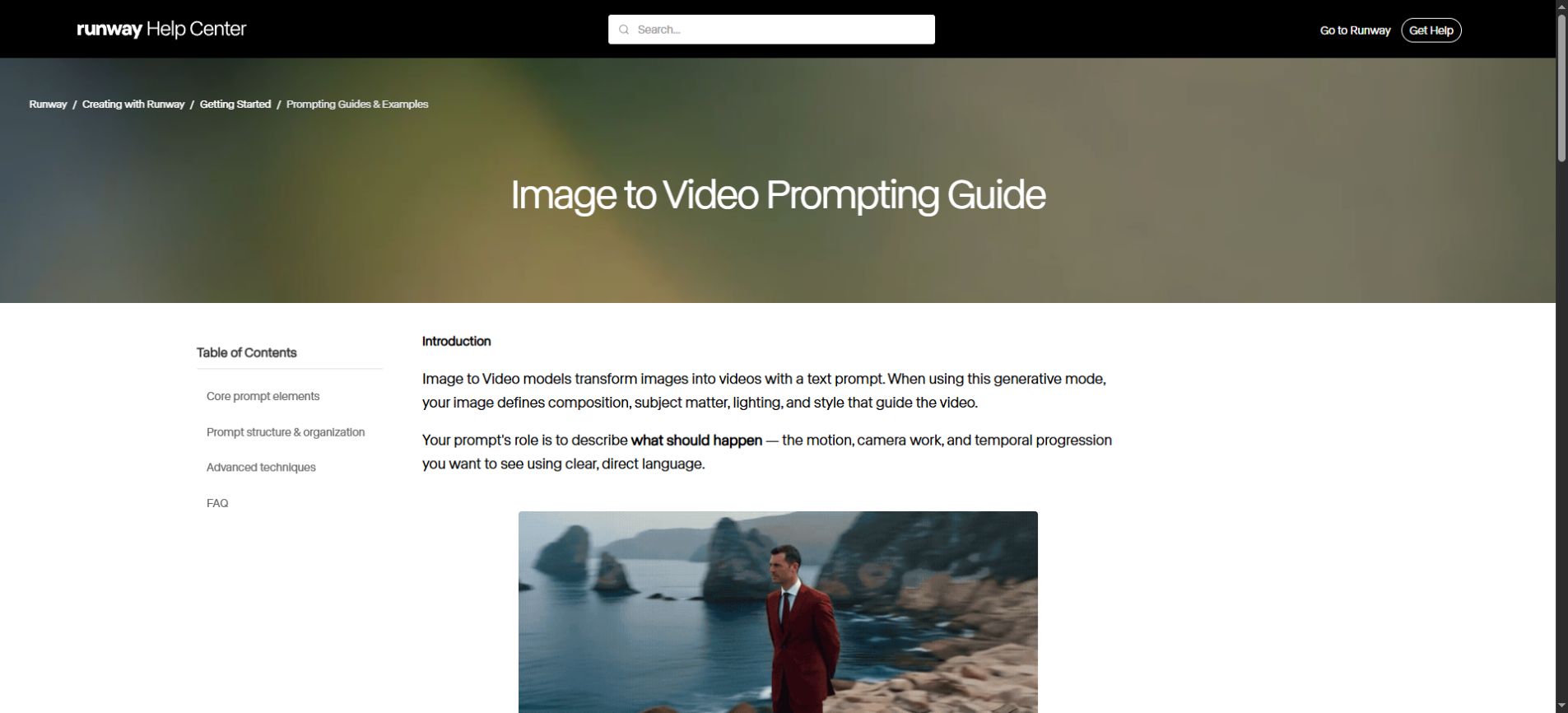
Runway’s guide describes the reference image as the starting visual and the text as direction for motion, camera work and how the shot develops over time. Available controls vary by model. Runway’s image-to-video prompting guide.
Describe the action, camera and ending
Reusable prompt
[Subject] performs [one visible action] at [pace]. The camera [holds or makes one move]. The shot ends with [specific framing or resting position].
For a quiet shot of the cottage, the ribbon moves while the bicycle stays parked. A locked camera makes it easy to check whether the breeze looks believable. If the bicycle rolls or the frame zooms, you have a concrete reason to revise the result.
Four prompt examples for the same starting photo
These examples assume a red bicycle with a ribbon on the handlebar, parked beside a coastal cottage. Use each prompt as a separate shot direction and adapt it to what your own image shows.
| Shot | Prompt to try | What to inspect |
|---|---|---|
| Quiet establishing shot | Locked camera. The ribbon flutters lightly in the sea breeze. The bicycle rests against the wall. The shot holds on the whole cottage entrance. | Steady framing and a stable bicycle silhouette. |
| Close detail | The camera slowly pushes toward the handlebars. The ribbon lifts briefly and settles. End with the handlebar and ribbon prominent in the frame. | Smooth scale change and a recognizable handlebar. |
| Sideways reveal | The camera slides gently to the right, bringing the cottage doorway further into view. The bicycle stays parked and its front wheel remains in frame. | Consistent wall lines and enough space for the reveal. |
| Focus shift | The camera holds its position. Focus shifts slowly from the foreground ribbon to the cottage doorway and rests there. | A change in sharpness with stable framing. |
Choose the shot that adds information. A push toward the handlebars draws attention to the ribbon. A sideways reveal gives the doorway more screen space. An establishing shot can give the viewer time to understand the place before you cut closer.
Use timing words the viewer can see
A short progression such as “the ribbon lifts, flutters twice and settles” describes an observable sequence. Choose the clip length using the tool’s controls when available. The generated motion can land earlier or later than requested, so check the clip on a timeline before planning a cut around a precise beat.
Review the end frame as well as the first frame. If you plan to cut into a close shot, look for a moment when the subject is readable and the movement has eased. A clean ending gives you more choices when you trim the clip.
Make one change when a clip drifts
Keep the same starting image and settings for your next attempt. Rewrite the clause tied to the problem. For example, if the shot moves too far, try “a gentle push toward the bicycle, ending with the entire front wheel still visible.” Review both versions at playback speed.
| If you see this | Change this first |
|---|---|
| The camera wanders | Specify a locked camera or one movement with a clear endpoint. |
| The bicycle changes shape | Reduce the scale of the motion and inspect the rim, spokes and handlebar across frames. |
| The doorway bends during the reveal | Start with more room around the doorway or use a smaller camera move. |
| The motion arrives too late | Give the clip one action and trim the result around its clearest moment. |
When the change requires the model to invent a large part of the scene, prepare a second reference or change the starting composition if your workflow supports it. A new still can make the intended framing clearer than several extra lines of direction.
Build the sequence from shots you can check
A three-shot sequence can begin with the cottage entrance, cut to the ribbon and finish on the doorway. Keep the light direction and the bicycle’s position consistent across the clips. Watch the sequence without sound to see whether the visual order makes sense before adding music or narration.
For a longer sequence, write the purpose and approximate duration of each shot first. Then use one still and one movement instruction per shot. Unlimited AI’s video prompting guide.
Frequently asked questions
How detailed should an image-to-video prompt be?
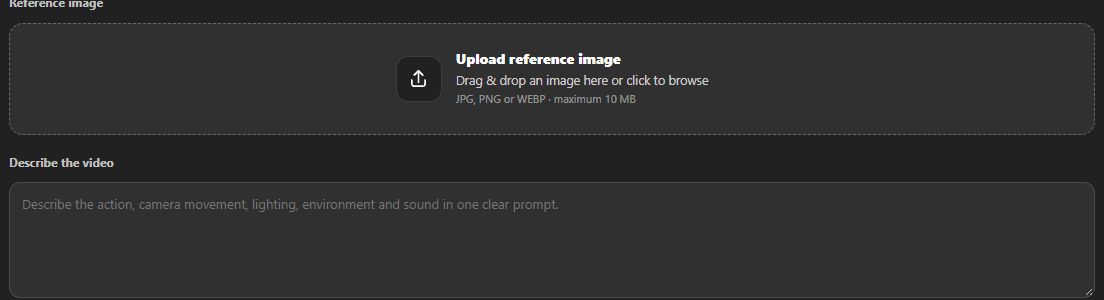
Start with the main action and the camera behavior. Add pace, framing or a final position when those details affect the shot. Introduce further direction after reviewing what the first attempt already does well.
How do I keep a product or logo readable?
Choose a clear starting image and a modest move. Check lettering and geometry frame by frame where they matter. For exact branding, keep a verified asset in the edit and place it separately where the composition allows.
Can a still image specify sound?
Sound depends on the model and editor. If the tool offers audio generation, give sound its own short instruction. Otherwise, plan the soundtrack separately and use the motion clip as the visual layer.