An AI audio enhancer can make a spoken recording easier to follow when a fan, traffic, or room echo competes with the voice. Before processing a whole episode, try it on the hardest 20 seconds. Compare the original and the enhanced clip at roughly the same listening volume. Keep the version in which you can hear every word and the speaker still sounds like themselves.
This workflow applies to podcasts, interviews, and voiceovers. Start by identifying the sound that bothers you. A steady hum calls for a different treatment than echo or a guest who recorded too far from the microphone.
Match the fix to the sound
| What you hear | First thing to try | What to check |
|---|---|---|
| A fan or steady hiss | Use light noise reduction with a noise-only sample. | Listen for thin or watery consonants. |
| Room echo around every phrase | Try speech enhancement on a short excerpt. | Check whether the voice sounds hollow or artificially close. |
| One click or desk bump | Edit that moment or use a repair tool on a small selection. | Play the edit across the cut to catch a jump. |
| Rough peaks on loud words | Try a different take or a dedicated clipping repair tool. | Check the loudest syllables for distortion. |
| Music beneath the speaker | Process the isolated dialogue track if you have it. | Bring the music back in the mix and review balance. |
If you can re-record a short voiceover, try moving the microphone closer and turning off the noise source before spending time on restoration. For an interview you can’t repeat, keep the original and try several small fixes on copies.
A short test for any AI audio enhancer
- Pick a revealing sample. Include a quiet sentence, a loud syllable, and a pause with the background sound. For two speakers, take a sample from each track.
- Keep a clean comparison. Export or duplicate the sample and leave the original untouched. Apply speech enhancement to the copy.
- Match playback levels. Adjust the louder copy down until the speech seems about as loud as the other one. Switch between versions while listening to the same sentence.
- Write down what changed. Note whether words are easier to follow and whether breaths, names, or the ends of sentences sound different.
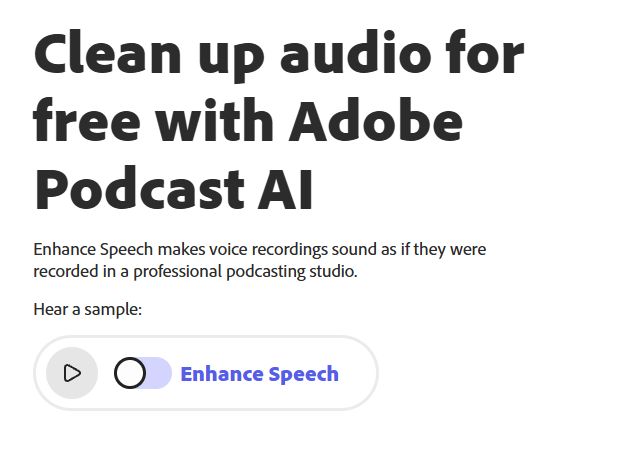
Adobe Podcast Enhance Speech is one option for the sample. Its public page has examples you can switch between to hear the effect. If your tool offers a strength control, start low and increase it until the main distraction fades. Check supported inputs and account limits on the tool page before preparing a large batch. Adobe Podcast Enhance Speech.
What to listen for in a level-matched comparison
Imagine a guest says “six small shelves” over the sound of a fan. The processed version sounds quieter between words, but the last syllable of “shelves” almost disappears. Try a gentler setting and compare again. A little steady room sound is often acceptable when the listener can clearly understand the sentence.
Then check the opposite problem. The host’s recording sounds natural, but the guest’s cleaned track has a very dry, close sound. Listen to a few exchanges back to back. Adjust each track separately so the differences between speakers don’t become more distracting than the original room tone.
Use headphones for the first pass and a phone speaker for the second. Listen to the complete mix once you bring back the intro music or sound effects. Speech that sounds clear in isolation can still get buried under the music.
When ordinary noise reduction is enough
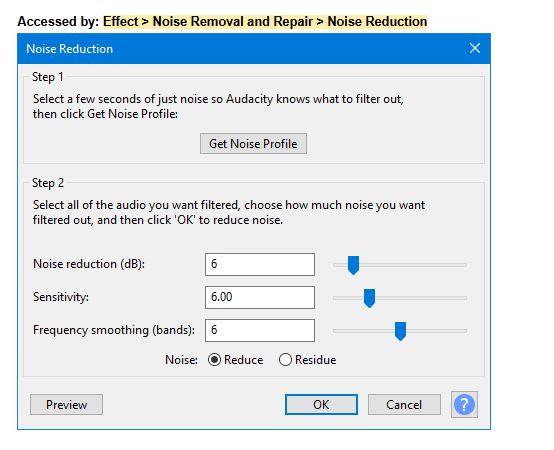
A steady fan, hiss, or similar background sound is a good candidate for Audacity’s Noise Reduction. Select a pause where only the noise is present, capture its noise profile, then preview a small amount of reduction on the affected passage. The manual also explains how to listen to the sound the effect would remove. If that preview contains obvious speech, ease off. Audacity’s Noise Reduction manual.
For noise that changes from moment to moment, a single profile may miss the loudest interruptions. Test speech enhancement on those sections or edit isolated interruptions individually. Save separate versions so you can choose which treatment sounds better on each passage.
Keep the cleaned track in sync with video
Export the dialogue from the final edit or use a track that starts at a known time. After enhancement, return it to that same point and check a clear visual cue near the beginning and end. If the timing changes between those two points, inspect the duration and project settings before applying a single offset. For creators planning a new shot, see our AI video prompts guide.
Keep an original recording and an enhanced export. Review any confidentiality obligations before uploading a guest interview or client voiceover to a web service. If the recording needs to stay on your device, use a local editor and confirm that the feature you choose processes locally.
Common questions
Can AI remove echo from a voice recording?
It can often make room echo less noticeable. Try a short sample and compare the ends of phrases, where echo and processing artifacts are easiest to hear. A closer microphone in a quieter space gives you a better starting point when you can record again.
Will speech enhancement fix clipped audio?
Clipping removes information at loud peaks. A repair tool may reduce the distortion, and results depend on how severe it is. Compare the repaired clip with another take if one is available.
Should I enhance before or after mixing?
Start with the isolated voice track so the enhancer has less competing sound to process. Then bring in music and effects, match the speakers’ levels, and listen to the finished mix.