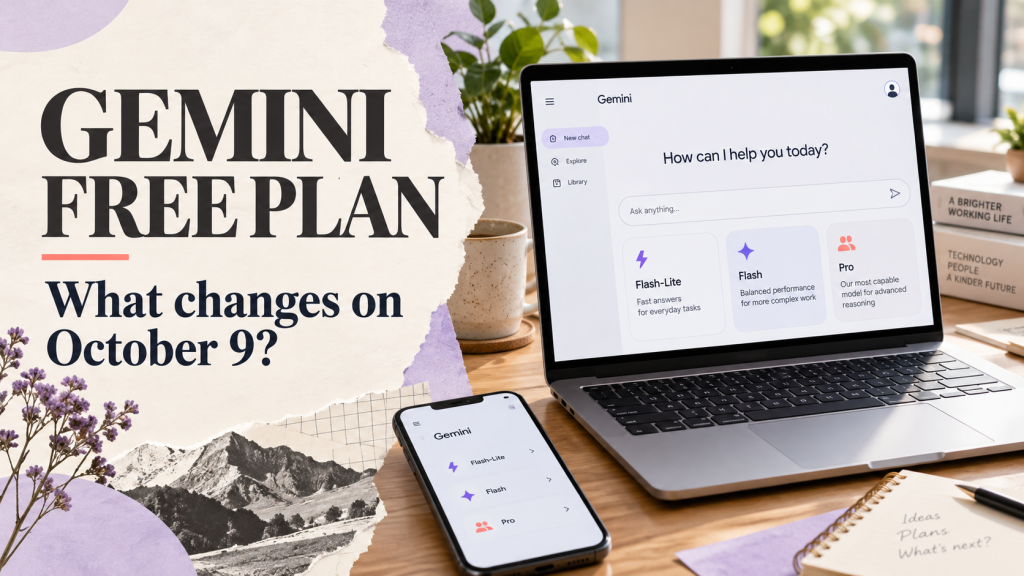
Gemini free plan changes start taking effect on October 9, 2026. For personal accounts without an AI subscription, Google’s updated access table lists Flash-Lite as the available model. Flash and Pro move into paid plan tiers. Google’s official notice explains the rollout.
If your model menu looks different today, the useful question is what you can still accomplish with the option available to you. This guide separates the access update from everyday workflow advice, so you can decide what to do next without rushing into a subscription.
Updated: October 9, 2026. This report uses Google’s published documentation; it is not a claim of hands-on testing across every account or region.
What changes—and who the notice covers
The notice concerns Gemini Apps used with personal accounts. Google says AI Plus subscribers will receive email explaining their timing. Its post-change model table is reproduced below. Work and school accounts have separate guidance.
| Personal-account plan | Flash-Lite | Flash | Pro |
|---|---|---|---|
| No AI subscription | Yes | No | No |
| AI Plus | Yes | Yes | No |
| AI Pro | Yes | Yes | Yes |
| AI Ultra | Yes | Yes | Yes |
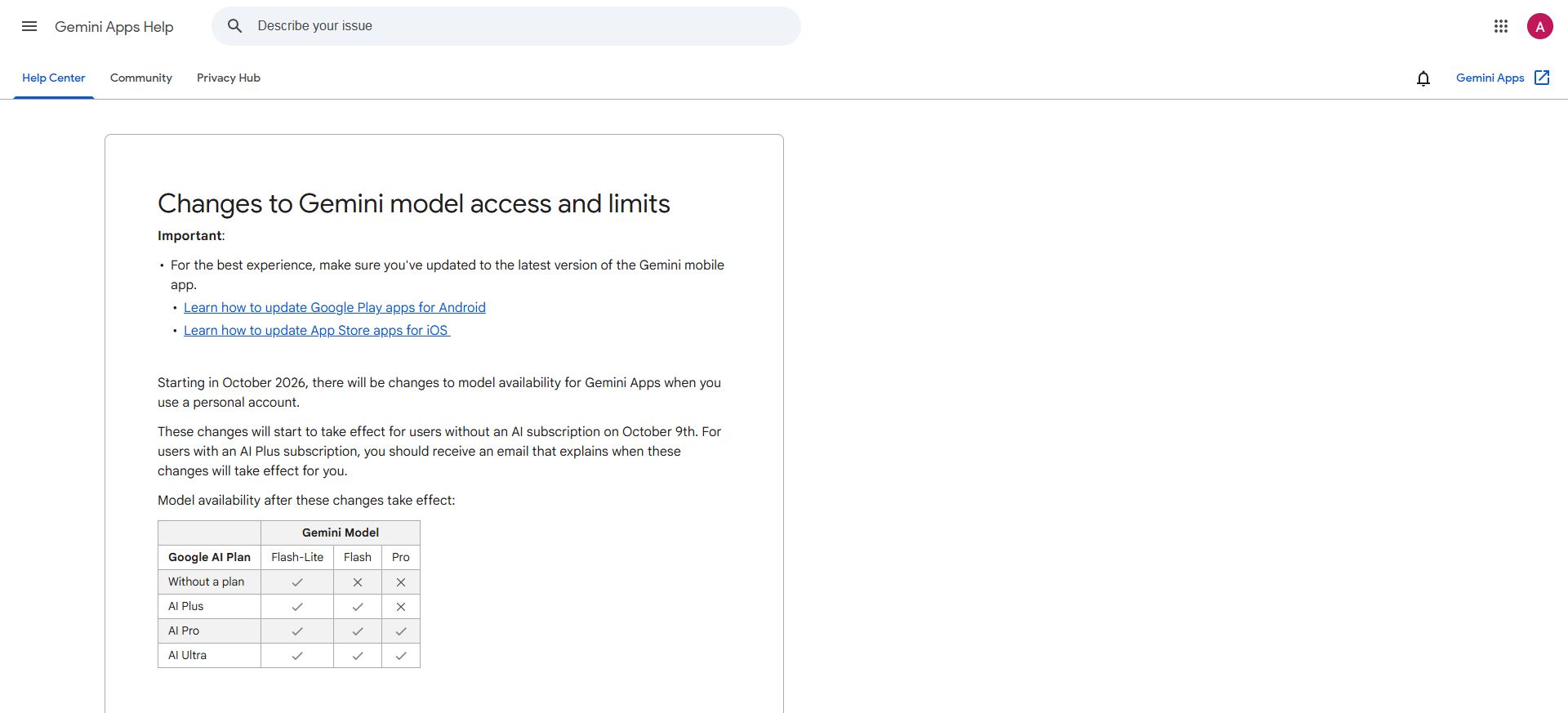
Read the table as an access map, not a guarantee that every feature is available without limits. Before making a decision, compare the name in your own model selector with the plan attached to that account.
First, identify what is actually missing
A missing model and an exhausted allowance can feel similar: you cannot use the option you expected. They call for different decisions. Start by noting the message on screen rather than assuming the application is broken.
- Confirm which Google account is signed in. Record whether it is personal, work or school.
- Check the model names in the composer and the subscription shown for that account.
- Read any usage-limit or reset message. Keep that separate from the model-access table.
- Update the mobile app if needed, then compare the web and mobile views.
- If the account appears inconsistent with the documentation, send feedback with the date, plan and exact message. Leave private files out of screenshots.
Avoid changing multiple settings at once. A short record of the problem is more useful than a long list of unrelated fixes. It also makes a support report easier to understand.
What Flash-Lite is intended to do
Google describes Flash-Lite as its fast everyday option, Flash as a balance of speed and reasoning, and Pro as the advanced choice for difficult math and coding. You can read the current descriptions in Google’s guide to using Gemini Apps.
For a practical evaluation, begin with work you can check quickly. Try turning your own notes into a checklist, suggesting alternate headings, or rewriting a short message for a particular audience. These are useful tests because the expected result is visible to you.
Do not judge a model only by how polished its answer sounds. A fluent paragraph can omit an important condition. A shorter answer can be more useful if it preserves the facts and follows the requested format. Our AI hallucinations guide explains why checking the output remains necessary.
A prompt that is easier to evaluate
Clear instructions reduce avoidable back-and-forth. They do not unlock restricted models or guarantee accuracy, but they give you a fairer way to judge the model you have.
Example prompt
Use only the notes below. Turn them into five action items. For each item, include the owner and deadline if stated. Write “not specified” for anything missing. Do not invent commitments. Finish with a separate list of open questions.
This prompt names the input, the output and the rule for missing information. When you inspect the result, compare each item with your original notes. If a deadline appears that you never supplied, the test has exposed an error you can fix immediately.
You can apply the same pattern to study notes or a project brief. Replace “action items” with the specific output you need. For more examples, use our guide to writing AI prompts.
Model access and usage limits are different
Google’s limits documentation describes compute-based allowances: prompt complexity, models, features and chat length affect usage. Allowances refresh every five hours until the weekly limit is reached. More demanding features can consume the allowance faster.
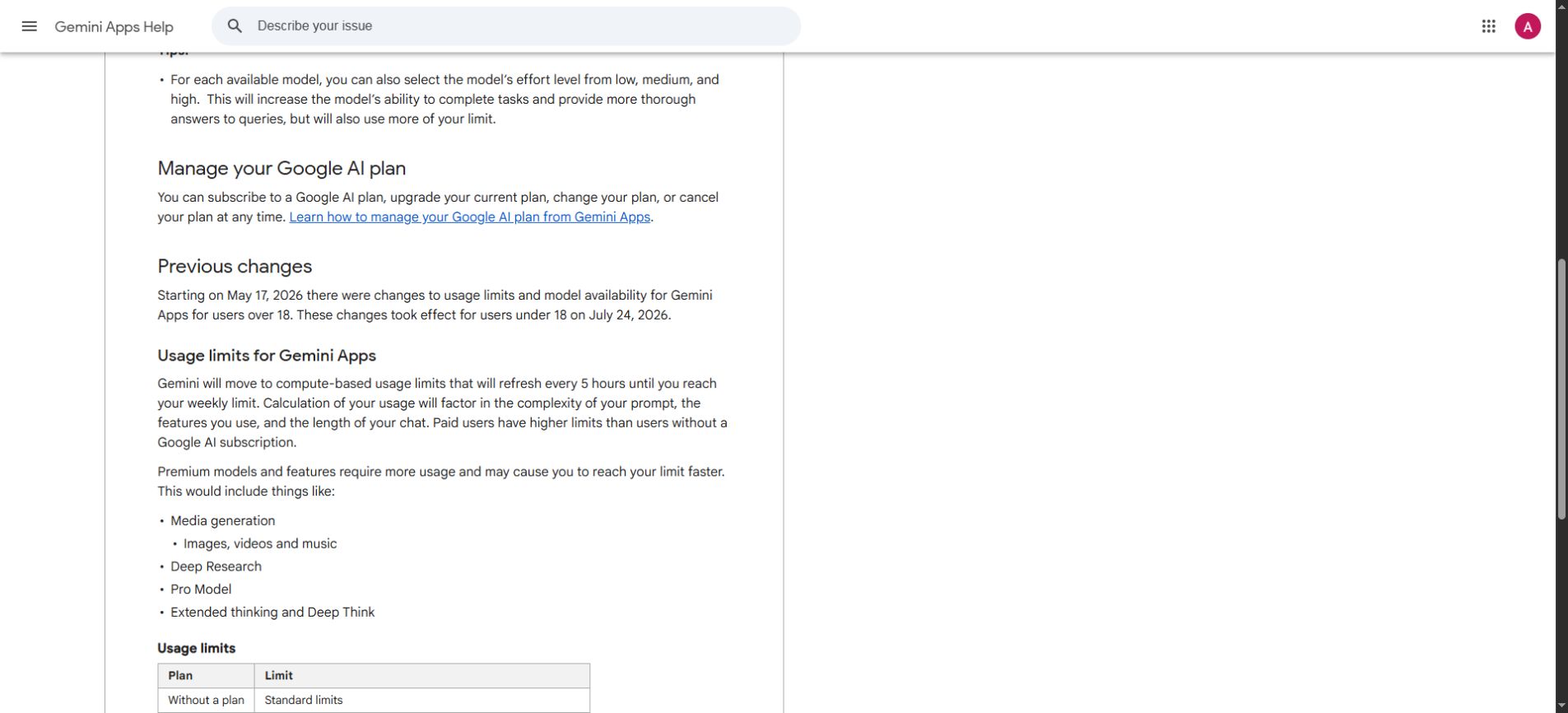
For planning, track completed tasks rather than counting messages. One conversation may produce a usable outline on the first attempt; another may need repeated corrections. The time spent reviewing and repairing the result belongs in the comparison too.
Keep requests specific and relevant. Ask for a concise answer when that is what you need, and provide the necessary excerpt instead of an unrelated document dump. These habits improve clarity, although they are not a promise of a particular usage saving.
Should you pay for a different plan?
Make the decision around recurring work. A missing menu option can create urgency, but it does not tell you whether a paid plan will improve your actual results enough to justify its cost.
Run a small task comparison first
Choose three tasks from your normal week. One might be a document summary, another an explanation of a difficult concept, and a third a coding question with a known expected result. Use non-sensitive examples and record what a successful answer must contain before running the test.
- Accuracy: did the answer preserve the important facts?
- Completeness: did it address every requested part?
- Review effort: how much checking or correction did it need?
- Practical value: did it save time on work you actually do?
A subscription is easier to assess when a specific bottleneck repeats. If your main work is brief rewriting and brainstorming, test whether your current access already meets that need. If your work repeatedly requires capabilities you cannot access, compare eligible plans and current local prices directly before subscribing.
Compare alternatives without moving everything at once
If you try another assistant, start with one representative task rather than transferring your whole workflow. Check that service’s privacy terms, feature availability and limits separately. “Free” describes a price; it does not by itself describe model quality, data handling or unlimited usage.
Unlimited AI offers a separate workspace for AI tasks. Our Unlimited AI walkthrough shows how to navigate it. The Gemini Apps change does not establish which models or allowances another service provides; check each platform’s current information.
A simple plan for students and everyday users
Build a routine that still works when a model menu changes. Keep the original sources, notes and drafts outside the chat. That makes it easier to verify an answer and continue elsewhere if access or limits change.
- Use AI to produce a first pass that you can inspect, such as an outline or questions about your notes.
- Do the important verification yourself: open the source, check the calculation, or run the code safely.
- Save a brief task specification with the expected output so you can reuse it across tools.
- Keep a record of errors that matter to your work instead of choosing by brand alone.
For studying, an explanation is more valuable when you can apply it. Ask for a practice question, attempt it independently, and then compare your reasoning. The goal is a repeatable learning process rather than a particular model label. See our AI for students guide for related workflows.
Frequently asked questions
Is Gemini becoming completely paid?
No. The updated table retains a free option. The important distinction is which models a plan includes, not whether every Gemini interaction now requires payment.
Will increasing effort unlock a missing model?
No. Effort is a setting within an available model, not an entitlement to another one. Google lists low, medium and high settings; higher effort uses more of the allowance.
Does this automatically change API or school access?
Do not apply a personal-account Gemini Apps notice to a different product or account type without checking its own documentation. API billing and organization-managed access should be evaluated separately.
What if my account looks different from the table?
Compare the signed-in account, plan, rollout notice and any limit message. If the mismatch remains, report those details through the service’s support or feedback options. Avoid repeated purchases or changes made solely to troubleshoot an unclear menu.
What to do today
Check your account and the current model menu, then test one real task with an outcome you can verify. Keep the option that does that work reliably at a cost you accept. Revisit the decision if your needs change, rather than treating every product update as a reason to rebuild your workflow.