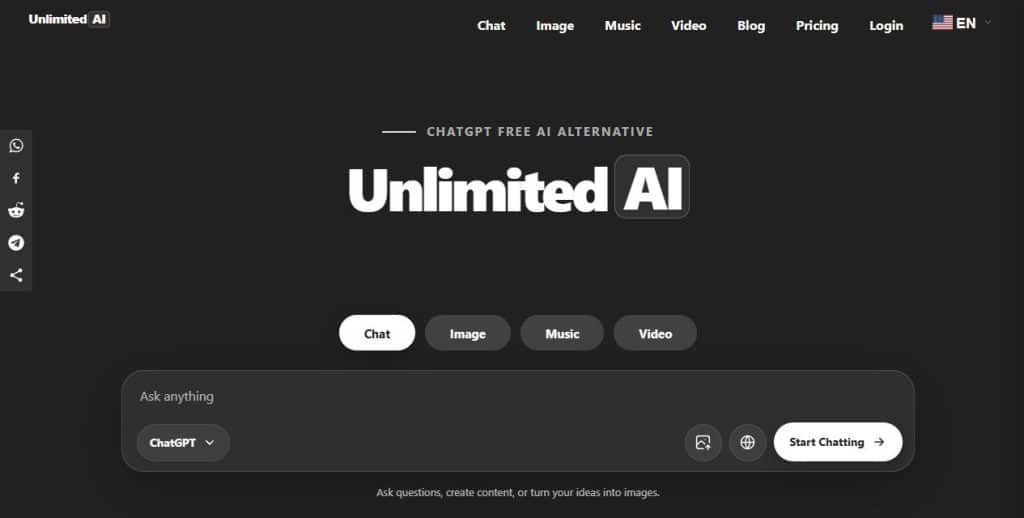
If you want to learn how to use Unlimited AI, start by choosing the result you need: chat, image, music or video. This guide explains how to find each tool, choose the right workflow and get better results. Every interface image below is a real screenshot of Unlimited AI, so you can follow the same controls on the live site.
Editorial note: AI tools, plan details and interface options can change. Check the live tool and Unlimited AI pricing page for current availability. AI output can also be incomplete or incorrect, so verify information when accuracy matters.
What is Unlimited AI?
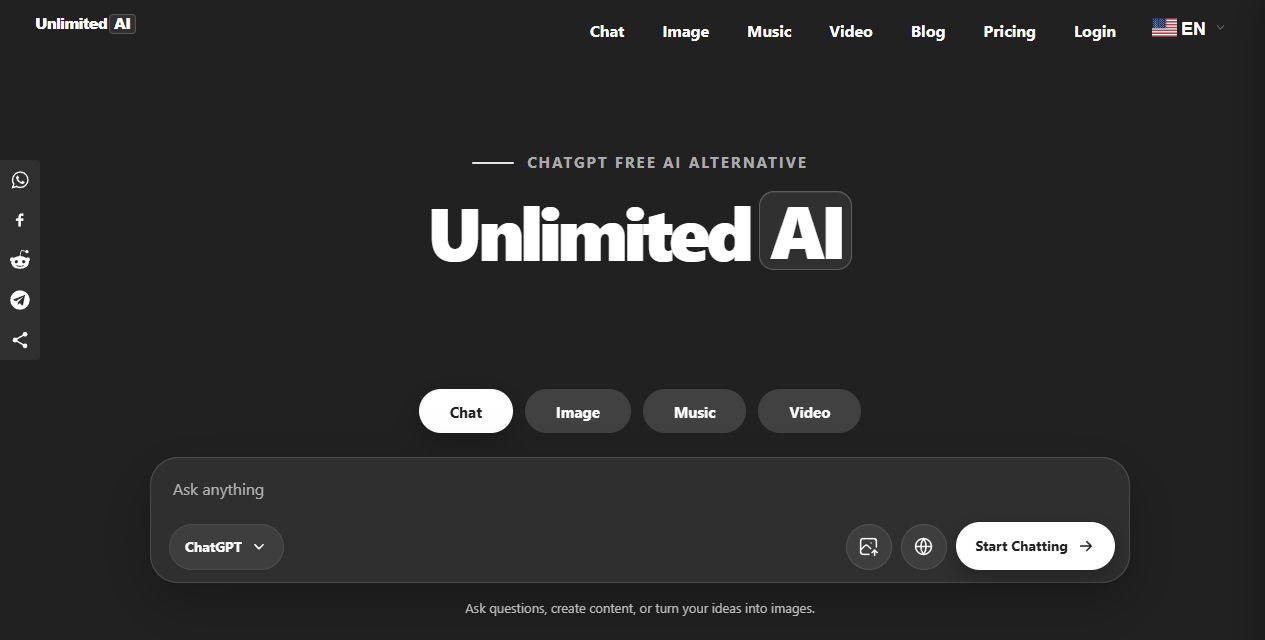
Unlimited AI is an independent AI assistant platform with separate workspaces for conversation, image creation, music generation and short video generation. Its homepage provides quick tabs for moving between those tasks, while the main navigation opens the full version of each tool.
Chat
Ask questions, draft content, learn, brainstorm and work with available AI assistants.
Image
Turn a written description into a downloadable image in a selected size and quality mode.
Music
Describe a genre, mood, instruments and atmosphere, then choose vocals or instrumental music.
Video
Create a short clip from a text description or use an image as the visual starting point.
The fastest way to begin is to decide what kind of result you need. Use Chat for words and explanations, Image for a still visual, Music for audio, and Video for motion. You can return to the homepage at any time to switch tools.
How to use Unlimited AI Chat
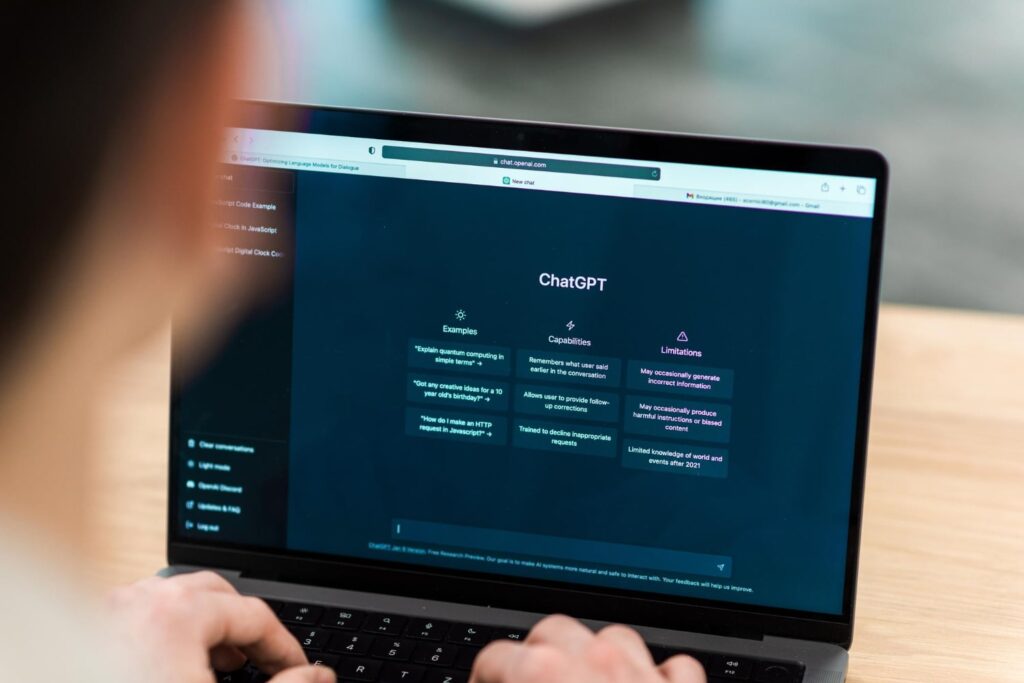
The Unlimited AI Chat workspace displays tabs for the available AI assistants. This makes it easy to keep one task in the same interface while choosing a model that fits your question.
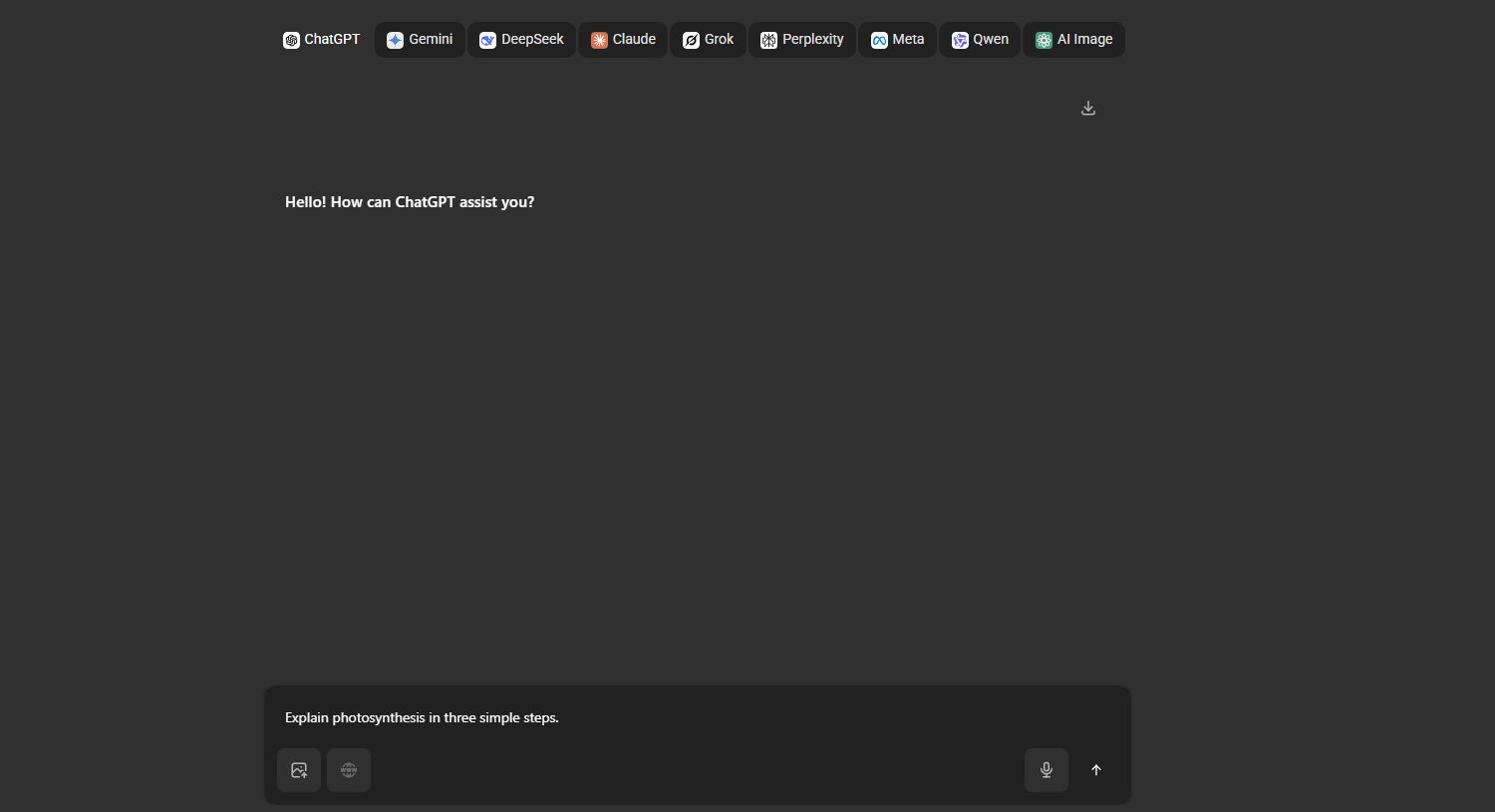
- Choose an assistant.Select one of the model tabs at the top. Availability and limits can vary, so use the options currently shown in your account.
- Write a clear request.State your goal, useful background, constraints and preferred format. “Explain photosynthesis in three simple steps for a 12-year-old” is more useful than “Explain this.”
- Add supporting input when needed.The composer can show controls for an image upload, web search or voice input. Only attach material you have permission to use.
- Review and refine.Ask a follow-up, request a shorter version or correct a misunderstanding. For a reusable method, read How to Write AI Prompts.
Useful prompt pattern: “Help me [goal]. Use this context: [context]. Follow these limits: [constraints]. Return the result as [format].”
Different assistants can respond differently to the same prompt. If the first answer is weak, clarify the request before switching models. Check names, dates, calculations, citations and other important details against reliable sources. The site itself also reminds users that AI can make mistakes.
How to create images with Unlimited AI
Open the Unlimited AI Image Generator and describe the picture you want. The live page offers a Standard mode, an Advanced option for signed-in users and a Pro Studio option associated with Pro. It also lets you choose a supported image size before generating.
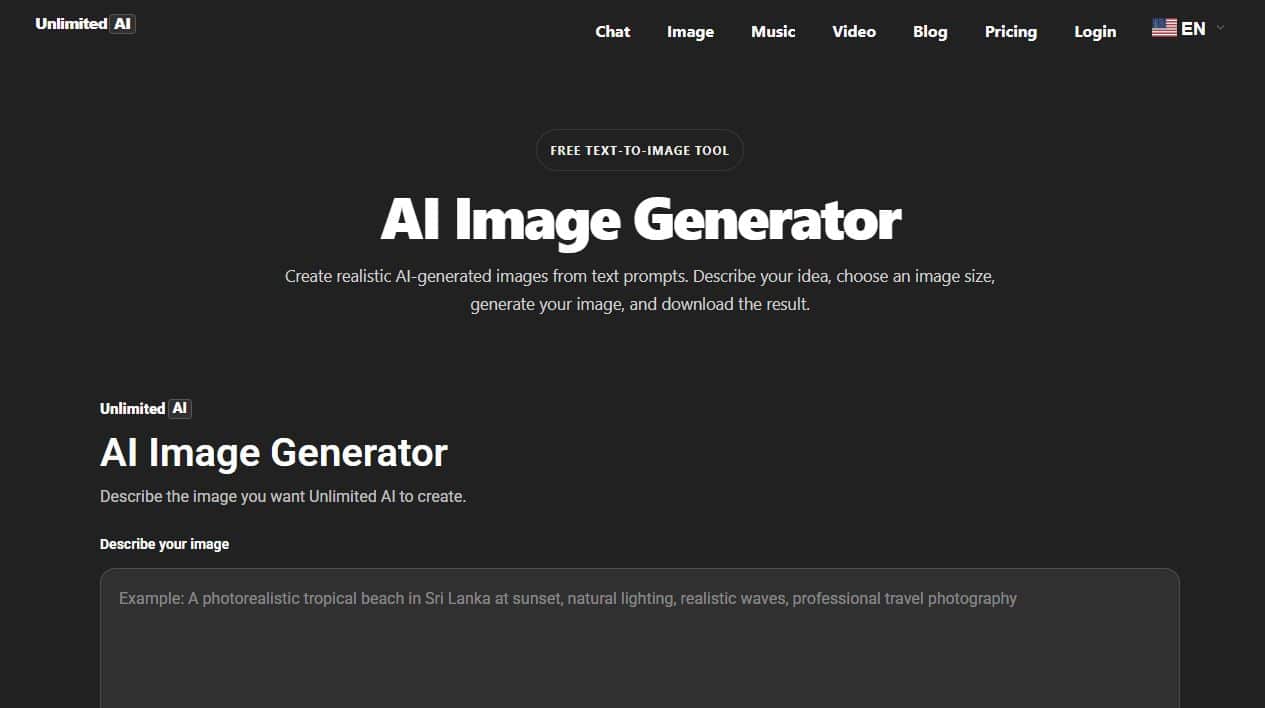
- Describe one main subject.Start with the person, object, animal, place or product that should dominate the image.
- Add visual details.Include the setting, lighting, colors, mood, camera angle, materials and composition.
- Choose a model and size.Pick the available quality mode and an aspect ratio that matches the final use, such as square, portrait or widescreen.
- Generate, inspect and download.Look for unwanted text, distorted anatomy or missing details. Revise the prompt and generate again when necessary.
Example image prompt: “A modern home office at sunrise, one open laptop on a wooden desk, warm natural window light, indoor plants, clean composition, realistic editorial photography, widescreen.”
For a deeper walkthrough with prompt examples, read the complete Unlimited AI Image Generator beginner’s guide.
How to generate AI music
The AI Music Generator is designed for complete vocal songs or instrumental tracks. Its interface lets you choose the generation type, describe the music and either use automatic lyrics or provide lyrics where supported.
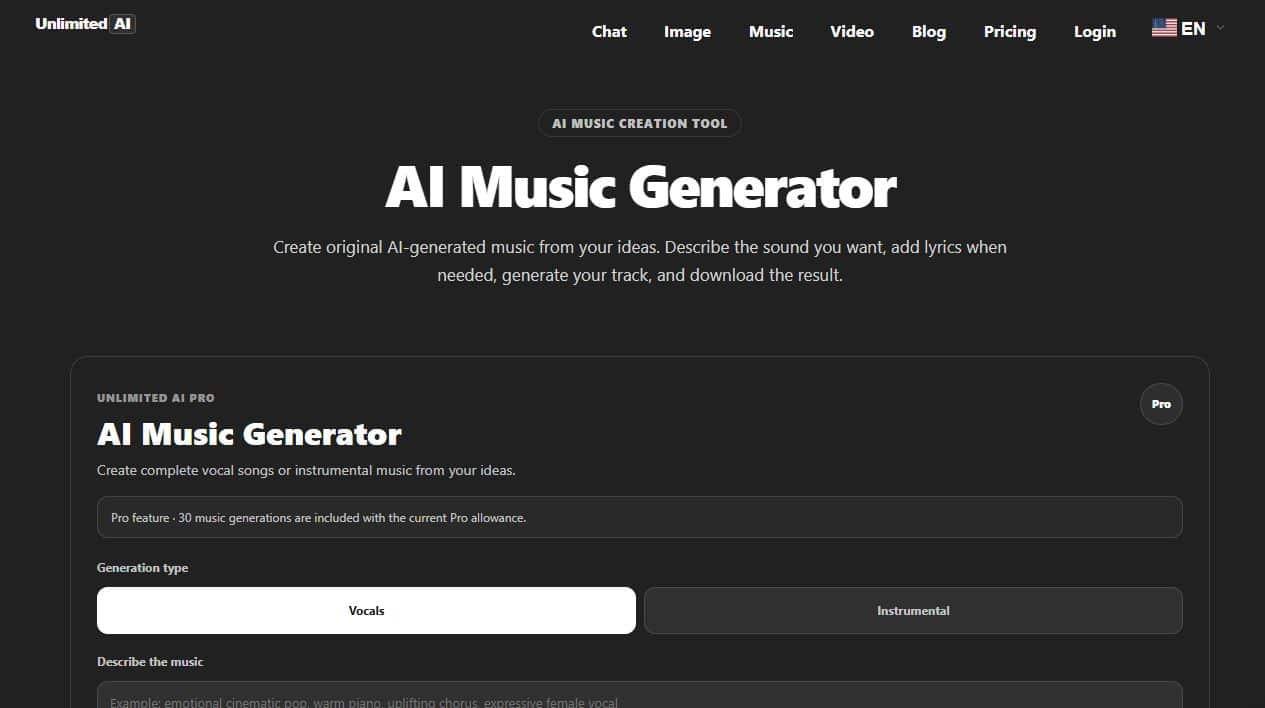
- Choose vocals or instrumental.Use vocals for a song concept and instrumental for background music or a track without a singer.
- Describe the sound.Name the genre, mood, instruments, tempo, energy and atmosphere. Avoid relying only on a famous artist’s name.
- Set the lyric approach.Choose automatic lyrics or add your own original lyrics when the option is available.
- Generate and listen carefully.Check the structure, vocal clarity, pacing and any unexpected audio before downloading or using the track.
Example music prompt: “Warm cinematic instrumental, gentle piano and soft strings, slow tempo, hopeful mood, gradual build, no vocals, suitable for a two-minute travel montage.”
How to create an AI video
The AI Video Generator supports text-to-video and image-to-video workflows where available. The interface includes a reference-image upload, prompt field, duration, aspect ratio and an automatic prompt-enhancement option.
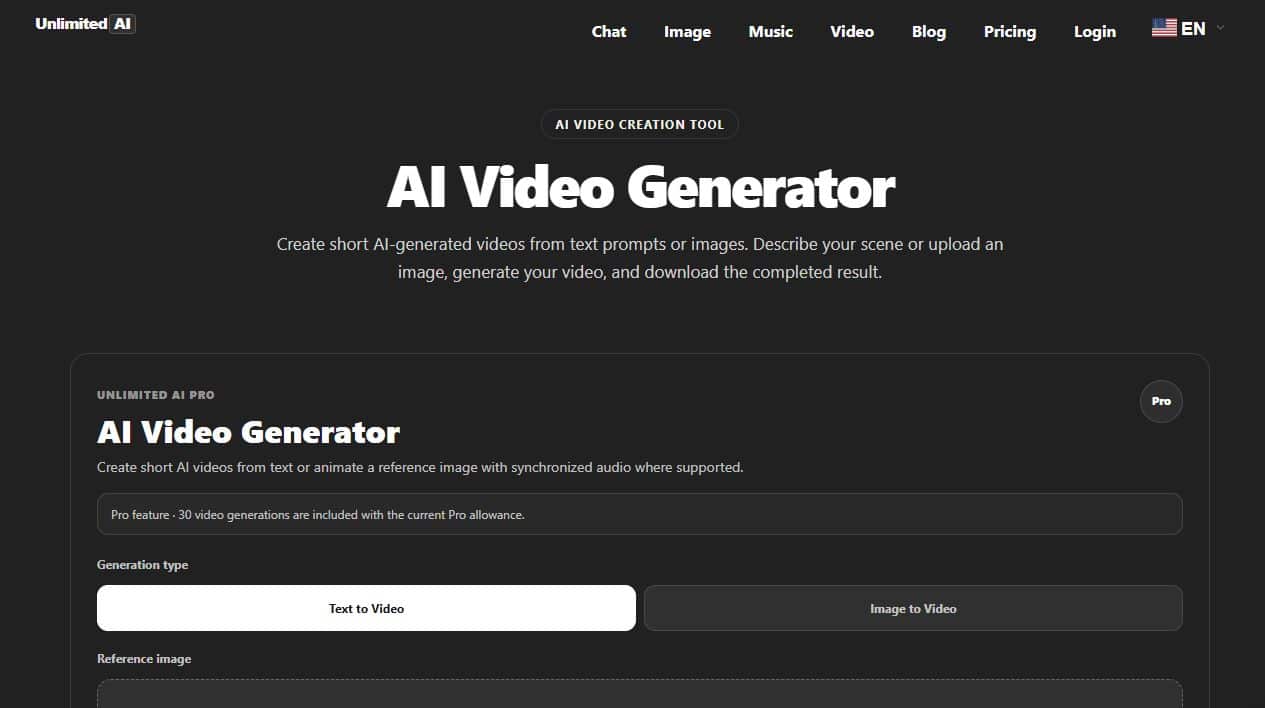
- Select the starting point.Choose text-to-video for a new scene or image-to-video when you already have a reference image you are allowed to use.
- Describe one clear scene.Include the subject, action, environment, camera movement, lighting, mood and sound when relevant.
- Choose the format.Use landscape for standard video, portrait for many short-form mobile posts or another supported ratio for your project.
- Preview before publishing.Watch for abrupt motion, warped objects, unreadable text, inconsistent faces and audio problems.
Example video prompt: “A calm waterfall in a tropical rainforest at sunrise, light mist above the water, leaves moving in a gentle breeze, slow forward camera movement, natural warm lighting, cinematic realism.”
Free access, accounts and Pro features
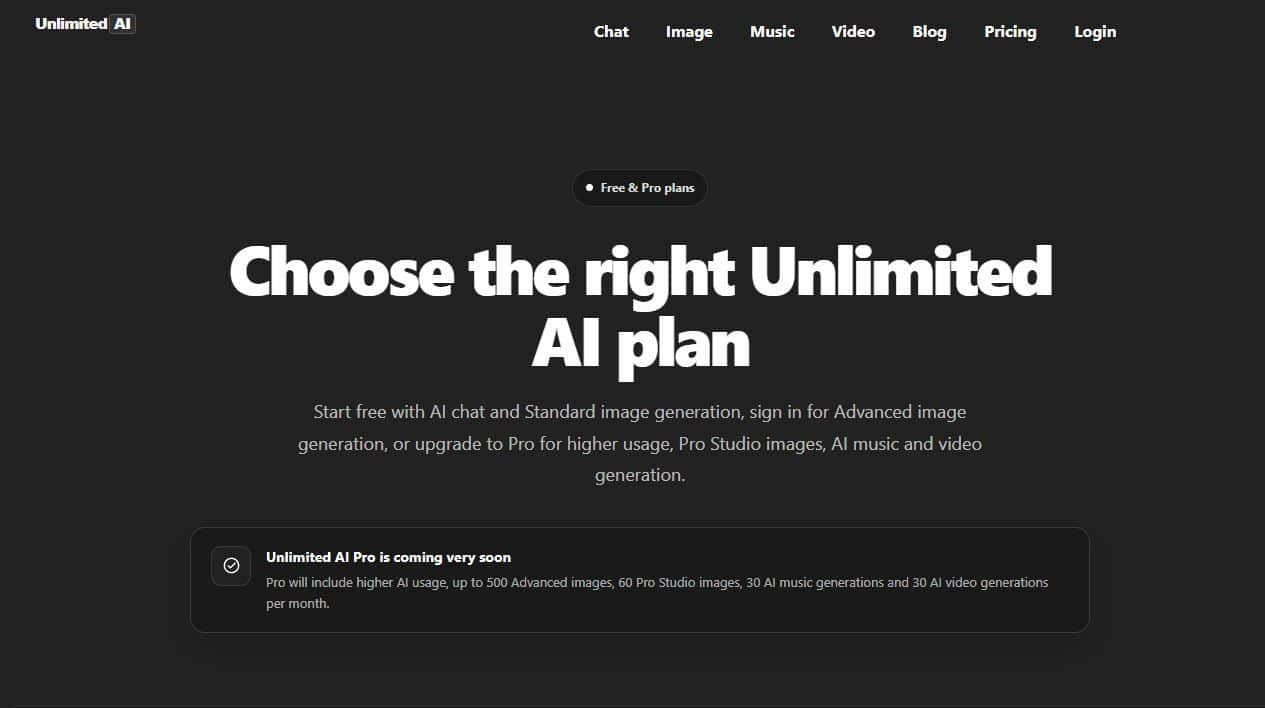
Unlimited AI separates features by tool, account state and plan. When this article was reviewed, the public pricing page described free AI chat and Standard image generation, account-based access to Advanced image generation, and planned Pro access for higher limits plus Pro Studio images, music and video generation.
| Need | Best place to start | What to check |
|---|---|---|
| Ask questions or write | AI Chat | Available model tabs and current usage limits |
| Create a basic image | Standard image generation | Image size and download options |
| Create higher-detail images | Advanced or Pro Studio | Sign-in, plan access and current allowances |
| Create music or video | Music or Video generator | Current Pro availability and supported settings |
Visit the live pricing page before making a purchase decision. Prices, allowances, launch status and included features can change after this guide is published.
How to use Unlimited AI safely
1Protect private data
Do not paste passwords, payment details, confidential work files or sensitive personal records into an AI prompt.
2Verify important output
Check facts, calculations, references and professional advice before acting on an answer.
3Respect rights
Only upload images, text, lyrics and other material you own or have permission to use.
4Review generated media
Inspect visual and audio output for errors, unwanted content and misleading details before sharing it.
Read the site’s Privacy Policy, Terms & Conditions and Disclaimer for the rules that apply to the service. The platform is independent and is not affiliated with or endorsed by the AI providers named in its interface.
Frequently asked questions
Can I use Unlimited AI without switching between different websites?
Unlimited AI places its chat, image, music and video entry points in one site. Each tool has its own workspace, and the main navigation lets you move between them.
Do I need an account?
Some public tools can be started without an account, while history, Advanced image generation and plan-based features can require sign-in. The live interface shows the current requirement for each option.
Which Unlimited AI tool should I use first?
Start with the output you need. Choose Chat for text or explanations, Image for a still picture, Music for a track and Video for a moving scene.
Are AI answers and generated media always accurate?
No. Chat responses can contain mistakes, and generated media can miss prompt details or introduce visual and audio artifacts. Review every result and verify important information.
Where can I see current limits and pricing?
Use the Unlimited AI pricing page. It is more reliable for current details than a fixed number in an article.
Choose a tool and start creating
Open Unlimited AI, select Chat, Image, Music or Video, and begin with one clear goal.
Open Unlimited AIThis guide reflects the website interface visible on September 22, 2026. Screens, limits and plan availability may change.