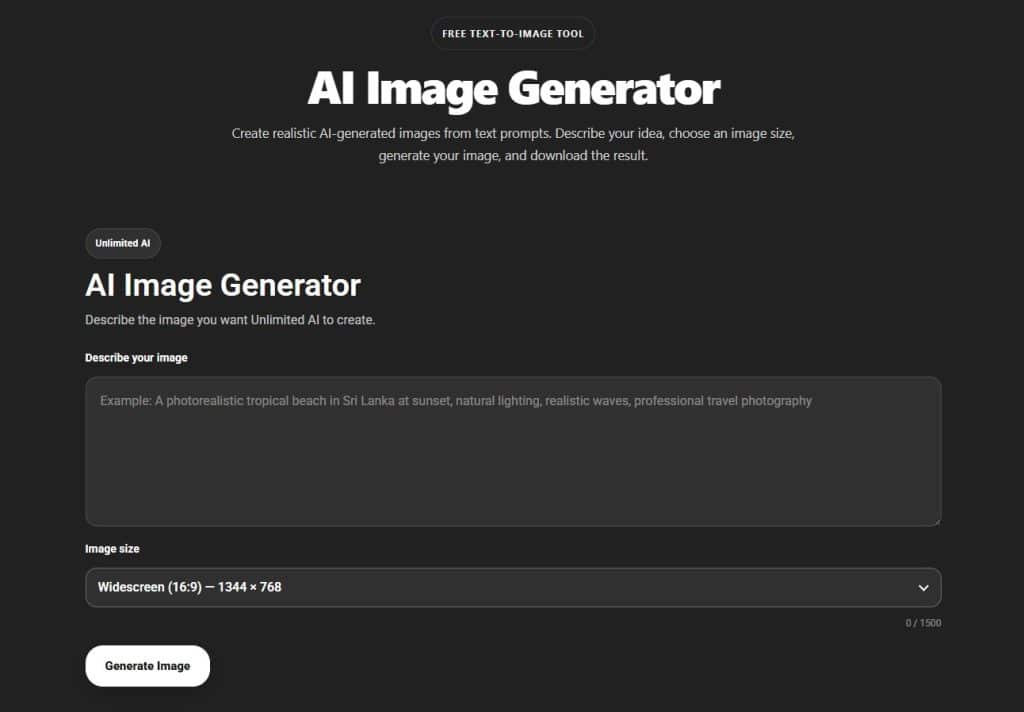
Creating unique images no longer requires advanced design skills or expensive software. With the Unlimited AI Image Generator, you can turn a simple written description into an original AI-generated image within seconds.
Whether you need realistic photos, product images, nature scenes, social media graphics, website visuals, or creative artwork, the Unlimited AI Image Generator makes the process simple and accessible.
In this guide, you will learn how to use the Unlimited AI Image Generator, how to write better prompts, how to select the correct image size, and how to improve your final results.
What Is the Unlimited AI Image Generator?
The Unlimited AI Image Generator is an online text-to-image AI tool available on UnlimitedAI.org. It allows users to create images by entering a description of what they want the AI to generate.
Instead of manually drawing or editing an image, you only need to explain the scene, subject, style, lighting, and other details. The AI analyzes your prompt and creates an image based on your instructions.
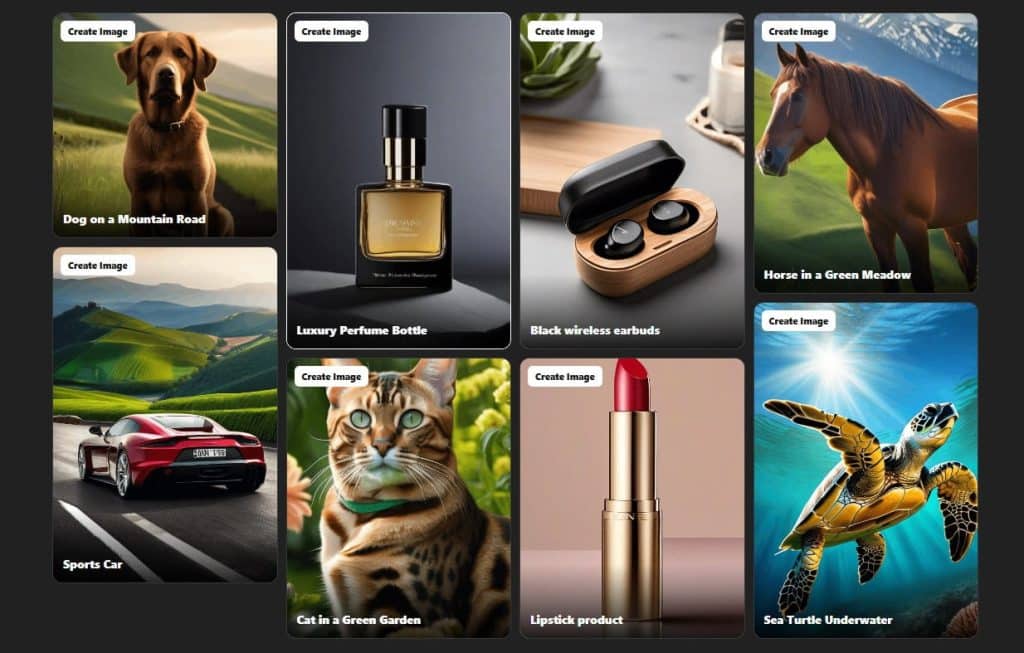
You can use the tool for many purposes, including:
- Website and blog images
- Social media posts
- Product concepts
- Nature and landscape images
- Wallpapers and backgrounds
- Character concepts
- Marketing visuals
- Educational projects
- Creative inspiration
- Personal projects
The tool is designed for beginners as well as experienced creators who want a faster way to produce original visual content.
How to Use Unlimited AI Image Generator
Using the Unlimited AI Image Generator is easy. Follow the steps below to create your first AI image.
Step 1: Open the Unlimited AI Image Generator
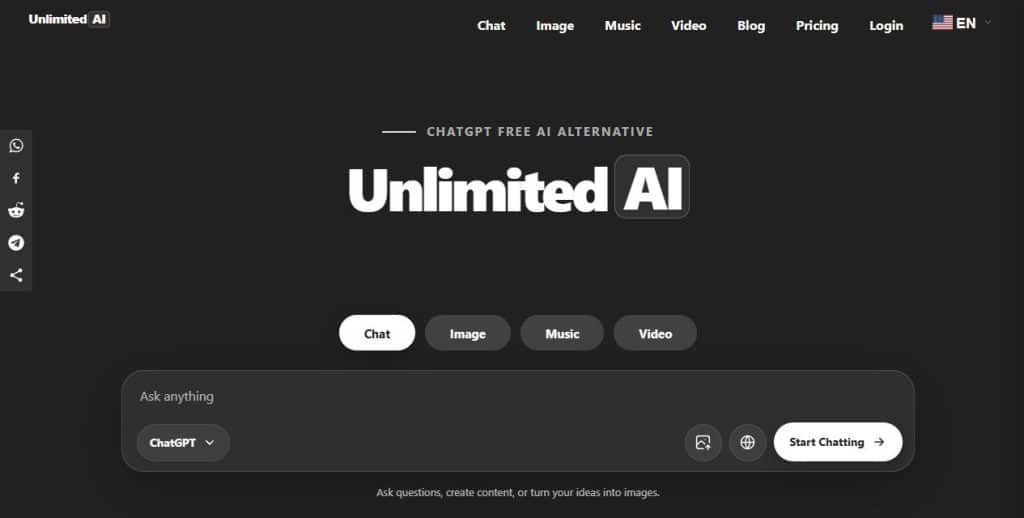
Visit UnlimitedAI.org and open the AI Image Generator.
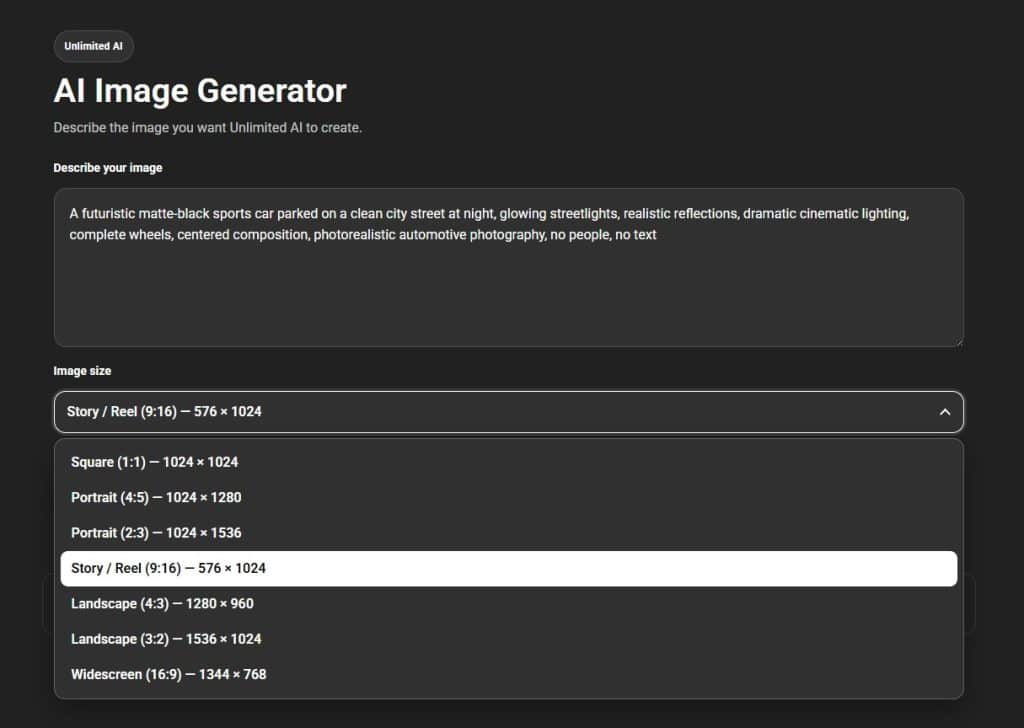
The image generation interface contains a prompt box where you can describe the image you want to create. You may also see options for selecting the image size or aspect ratio.
No professional design experience is required. You can begin by entering a simple description.
Step 2: Describe the Image You Want
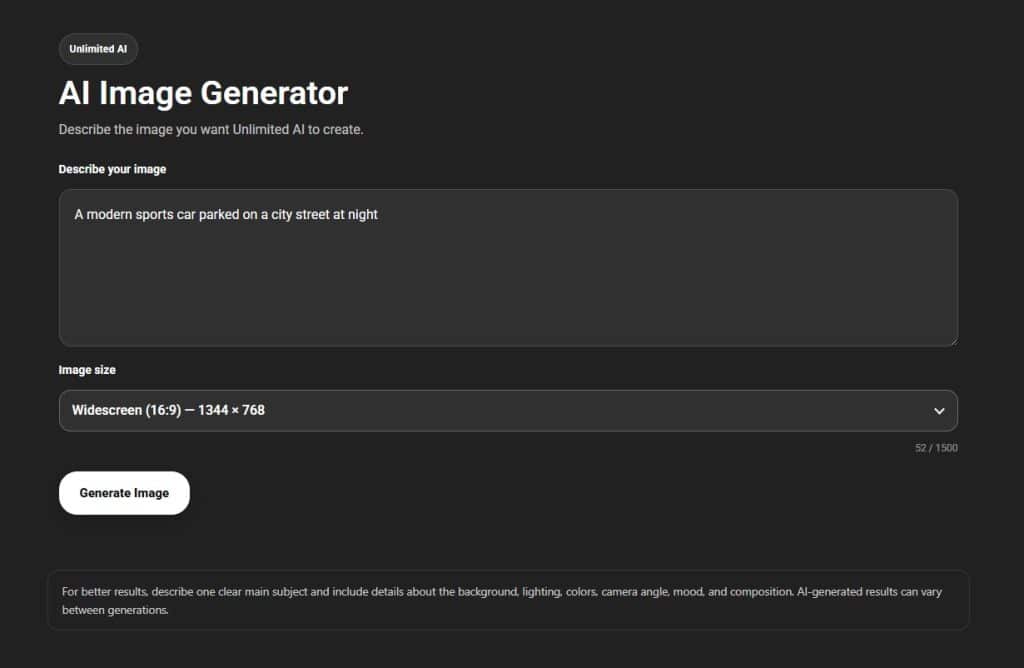
Enter your image description inside the prompt box.
Your prompt tells the AI what it should generate. A basic prompt can be as simple as:
A modern sports car parked on a city street at night
However, adding more details usually produces a better and more accurate image.
For example:
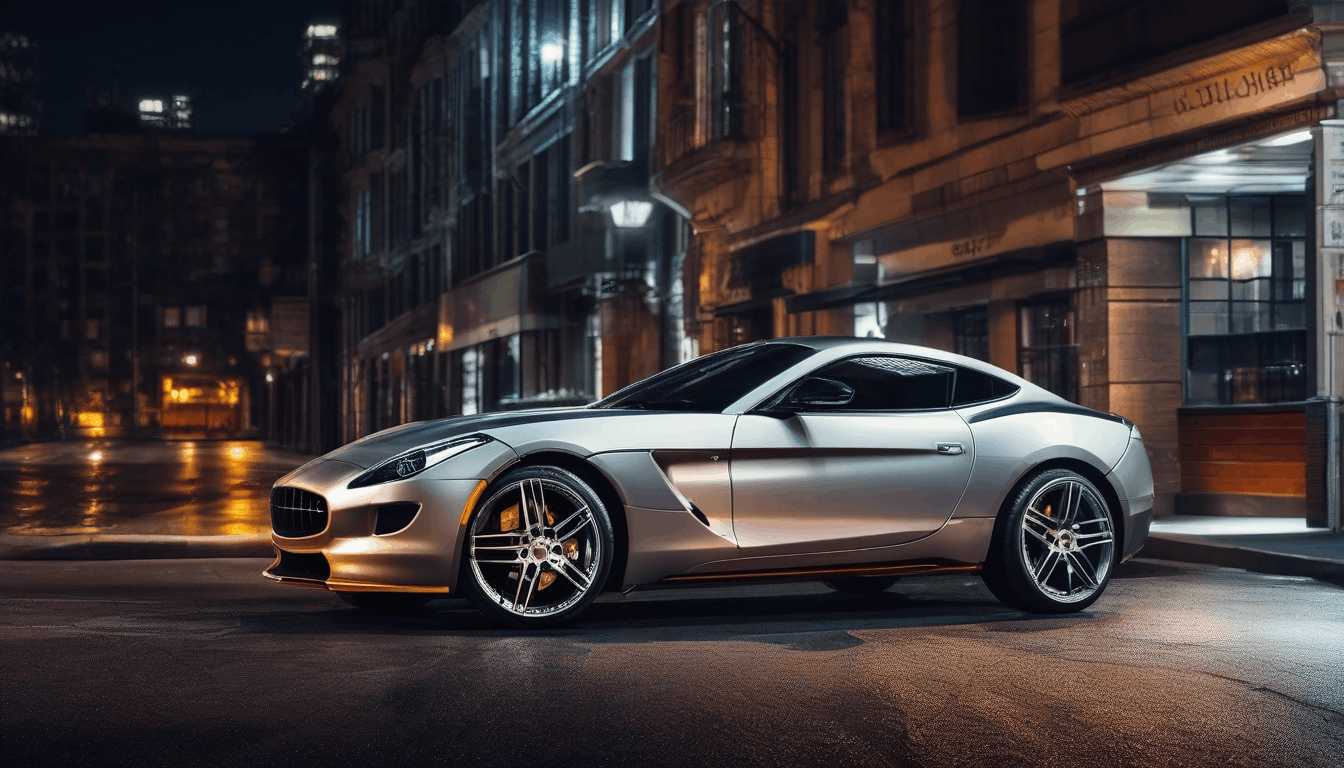
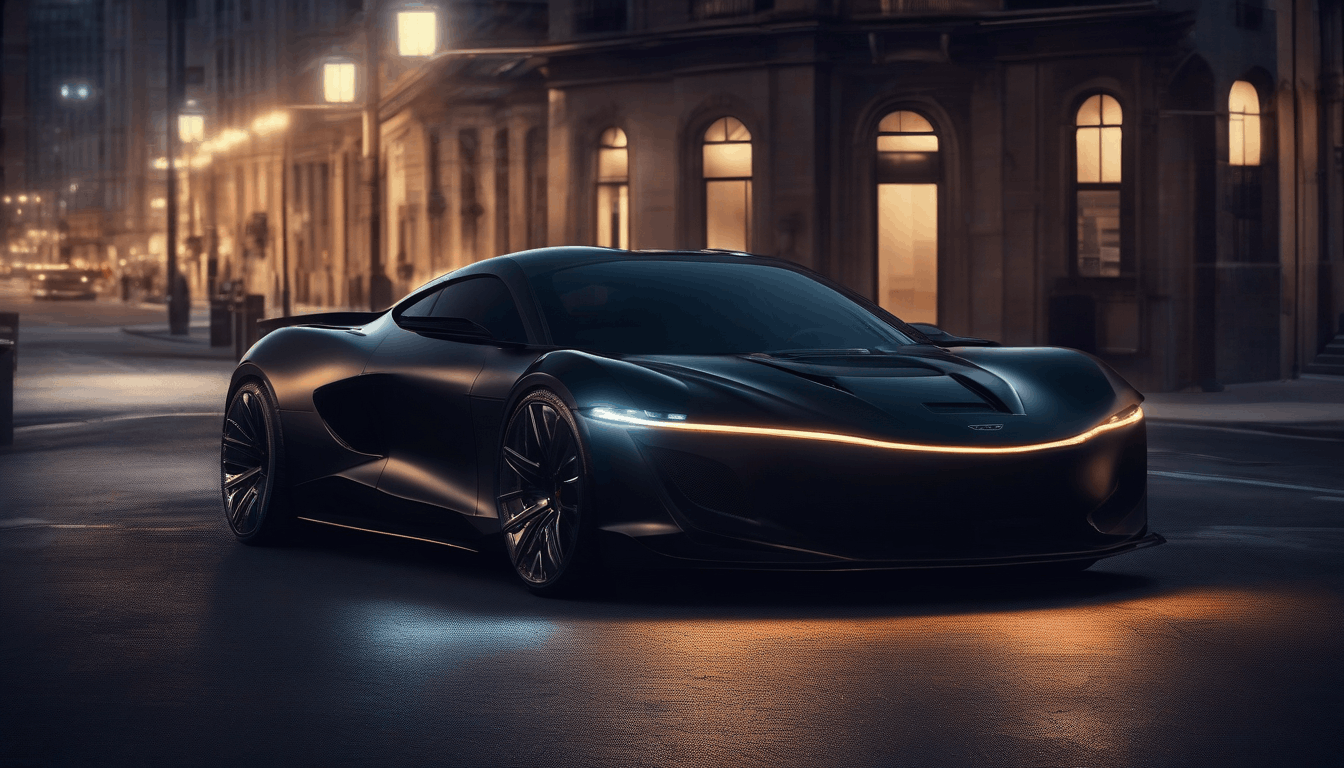
A futuristic matte-black sports car parked on a clean city street at night, glowing streetlights, realistic reflections, dramatic cinematic lighting, complete wheels, centered composition, photorealistic automotive photography, no people, no text
This detailed prompt provides information about the subject, environment, lighting, composition, and image style.
Step 3: Choose the Correct Image Size
Select an image size that matches how you plan to use the generated image.
Common options include:
- Square: Suitable for profile images, product posts, thumbnails, and social media posts.
- Portrait: Suitable for posters, mobile content, Pinterest images, and character portraits.
- Story format: Suitable for Instagram Stories, TikTok backgrounds, and other vertical mobile content.
- Landscape: Suitable for websites, blog banners, presentations, and desktop backgrounds.
- Widescreen: Suitable for hero sections, YouTube thumbnails, cinematic scenes, and wide website banners.
Choosing the correct aspect ratio before generating the image helps prevent unwanted cropping later.
Step 4: Generate the Image
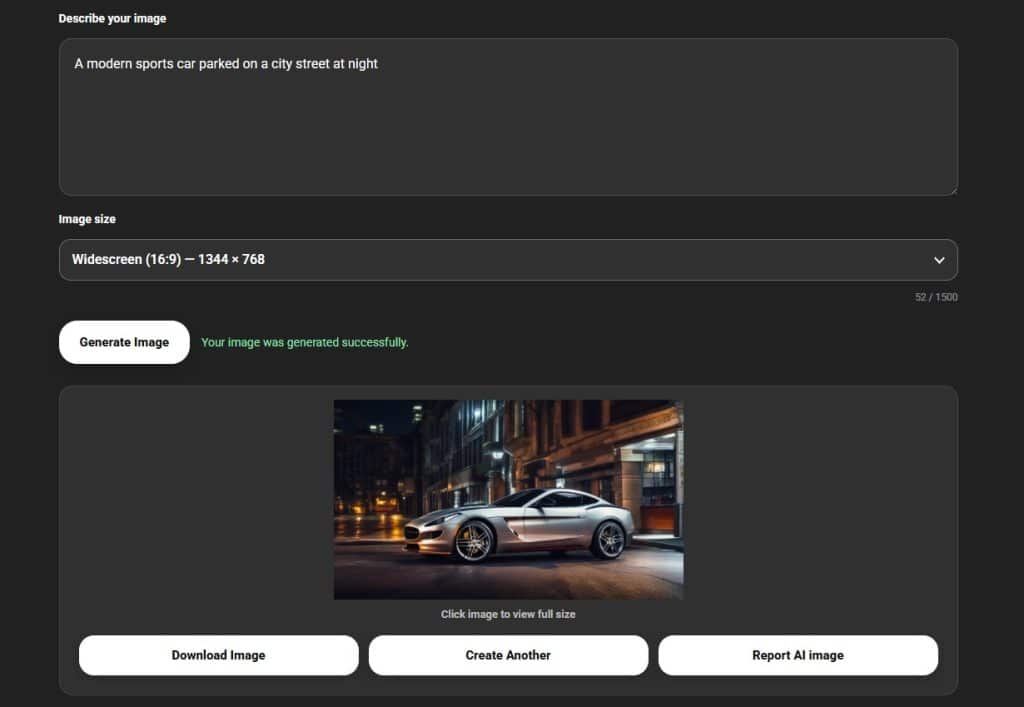
After entering your prompt and selecting the image size, click the Generate button.
The AI will process your description and create an image. Generation time may vary depending on server availability, image complexity, and current demand.
Keep the page open while your image is being generated.
Step 5: Review the Generated Image
When the image appears, review it carefully.
Check whether:
- The main subject is complete
- The composition matches your request
- Important objects are clearly visible
- The image contains unwanted text
- Human anatomy looks natural
- Vehicles have complete wheels and lights
- The background matches your prompt
- The selected aspect ratio is correct
AI-generated images may not always be perfect on the first attempt. If the result is not what you expected, improve your prompt and generate another version.
Step 6: Download Your Image
Once you are satisfied with the result, use the available download option to save the image to your device.
You can then use the image for your website, blog, presentation, social media content, or personal creative project, subject to the platform’s applicable terms and usage rules.
How to Write Better AI Image Prompts
A strong prompt is one of the most important parts of AI image generation. The AI can only use the information included in your description.
A useful prompt usually contains the following elements:
Main subject + action or position + environment + lighting + style + camera view + quality instructions
For example:
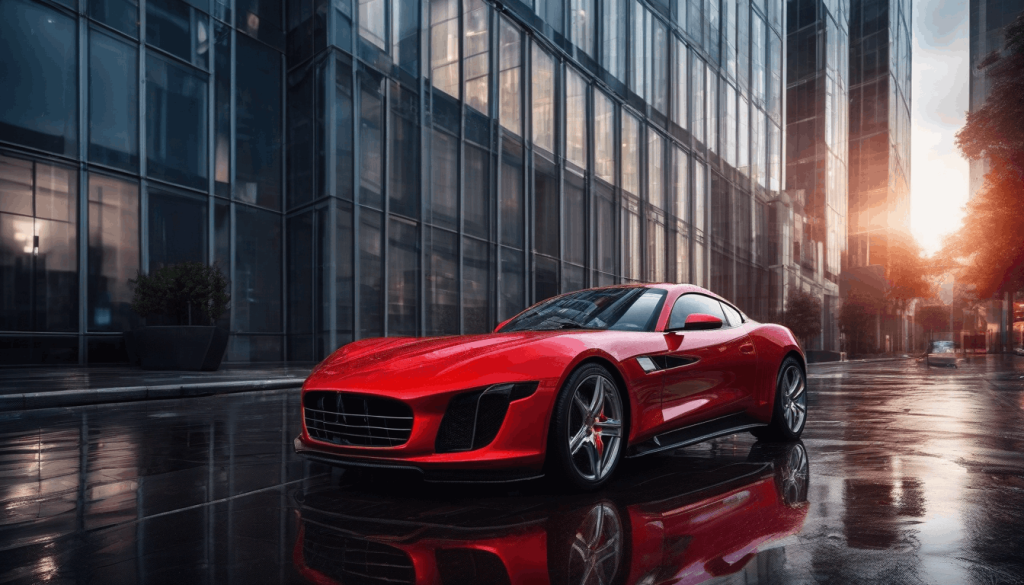
A red sports car parked beside a modern glass building, wet street after rain, evening city lights, realistic reflections, low-angle camera view, professional automotive photography, photorealistic, sharp details, no people, no text
Let us examine each part.
Main Subject
Clearly identify the main object or scene.
Examples:
- A luxury perfume bottle
- A tropical waterfall
- A modern electric car
- A Bengal cat
- A futuristic city
- A wooden cabin in the mountains
Avoid using a description that is too broad, such as “make something beautiful.”
Action or Position
Explain what the subject is doing or where it is positioned.
Examples:
- Standing on a rock
- Parked beside a building
- Flying over the ocean
- Resting on a marble platform
- Walking through a forest
- Placed in the center of the scene
Environment
Describe the background or location.
Examples:
- A tropical beach at sunset
- A modern photography studio
- A misty mountain forest
- A clean white background
- A futuristic city street
- A colorful coral reef
Lighting
Lighting can significantly change the appearance of the image.
Useful lighting descriptions include:
- Soft natural daylight
- Golden-hour sunlight
- Dramatic studio lighting
- Warm sunset lighting
- Neon city lighting
- Cinematic side lighting
- Bright commercial lighting
Visual Style
Tell the AI what type of image you want.
Examples:
- Photorealistic photography
- Cinematic image
- Professional product photography
- Digital illustration
- Watercolor artwork
- Minimalist design
- Fantasy artwork
- 3D render
For realistic results, include terms such as photorealistic, natural lighting, realistic proportions, and professional photography.
Camera Angle and Composition
Camera instructions can help control how the subject appears.
Examples:
- Wide-angle view
- Close-up shot
- Eye-level camera
- Low-angle view
- Top-down view
- Centered composition
- Full-body view
- Symmetrical composition
Quality and Restriction Instructions
You can add instructions that help reduce common AI generation problems.
Examples:
- No text
- No logo
- No watermark
- No extra objects
- Complete subject
- Realistic proportions
- Clean background
- Sharp details
- Natural colors
- Correct anatomy
Easy Prompt Examples for Unlimited AI Image Generator
Here are several prompts you can copy and customize.
Nature Image Prompt
A peaceful tropical waterfall surrounded by lush green plants, clear blue water, soft morning sunlight, light mist, natural colors, realistic landscape photography, wide composition, highly detailed, no people, no buildings, no text
Car Image Prompt
A modern black sports car parked on a clean road at sunset, complete car visible, four realistic wheels, detailed headlights, glossy reflections, cinematic lighting, professional automotive photography, centered composition, no people, no text
Product Image Prompt
A premium black perfume bottle placed on a polished dark marble platform, subtle golden accents, soft mist around the base, dramatic studio lighting, elegant reflections, deep black background, professional commercial product photography, centered composition, no text, no logo
Animal Image Prompt
A cute Bengal cat sitting on a wooden floor near a large window, four natural legs, soft daylight, detailed fur, realistic eyes, peaceful indoor background, professional pet photography, natural proportions, no text
Food Image Prompt
A freshly baked chocolate cake placed on a wooden table, rich chocolate layers, soft natural window light, warm café background, realistic food photography, close-up composition, detailed texture, no people, no text
Website Banner Prompt
A futuristic artificial intelligence workspace with a glowing computer interface, modern dark environment, subtle blue lighting, clean professional composition, wide cinematic view, realistic technology concept, empty space for website content, no text, no logo
Tips for Getting Better Image Results
Keep One Clear Main Subject
Prompts containing too many people, objects, actions, and locations can confuse the image generator.
Instead of requesting several unrelated elements, focus on one clear scene.
For example, use:
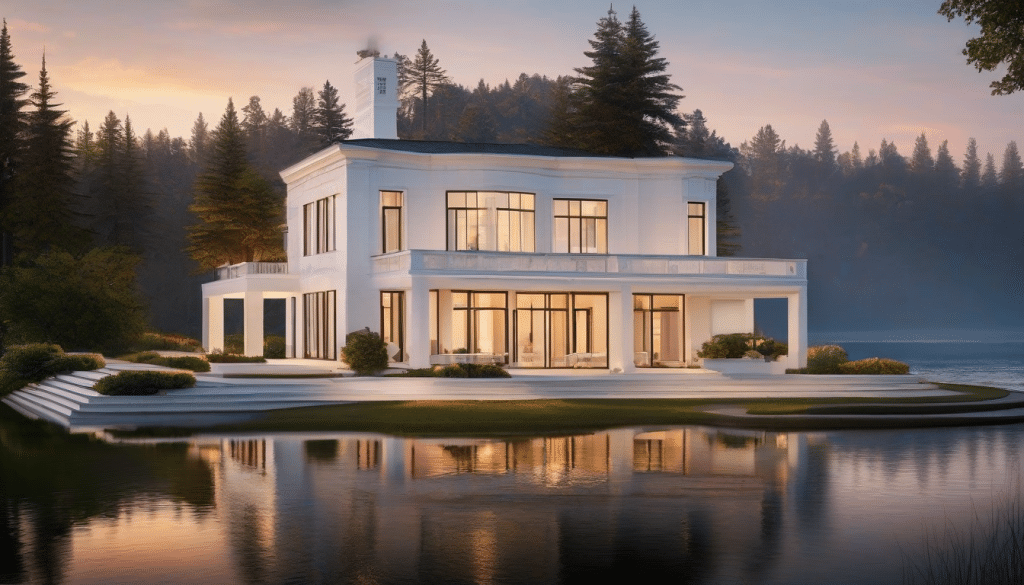
A modern white house beside a calm lake at sunrise
Instead of:
A house, three cars, a family, several animals, mountains, a city, a boat, and an airplane
Simple, focused prompts usually produce cleaner images.
Avoid Contradictory Instructions
Do not combine instructions that conflict with each other.
For example, asking for a “bright daytime scene at midnight” may create an inconsistent result. Choose one clear environment and lighting condition.
Mention Important Details Early
Place the most important subject near the beginning of your prompt.
The AI usually gives greater attention to the main elements mentioned clearly and early.
Generate More Than One Version
Even when using the same prompt, each generated image can be different. Try generating several versions before choosing the best result.
You can also make small prompt changes between generations.
Use Simple Language
You do not need to write complicated sentences. Clear and direct descriptions often work better than long, confusing paragraphs.
For example:
A small wooden cabin in a snowy forest, warm lights inside, evening sky, realistic winter photography
This prompt is simple but contains enough detail to guide the AI.
Specify What Should Not Appear
When unwanted elements frequently appear, add restrictions at the end of your prompt.
For example:
No people, no text, no logo, no watermark, no extra objects
Negative instructions may improve the result, although the exact outcome can still vary between generations.
Common AI Image Generation Problems
The Image Does Not Match the Prompt
Rewrite the prompt using clearer descriptions. Remove unnecessary details and place the main subject at the beginning.
The Subject Is Incomplete
Ask for the full subject to be visible.
For example:
Complete car fully visible inside the frame, including all four wheels
Unwanted Text Appears
Add the following instruction:
No text, no letters, no numbers, no logo, no watermark
AI may occasionally generate shapes that resemble text, so another generation may be necessary.
Human Faces or Hands Look Incorrect
Use a simpler pose and avoid complicated interactions.
You can also create images where the person is photographed from behind:
A person walking through a forest, viewed from behind, face completely turned away and not visible, simple natural pose
Too Many Objects Appear
Use phrases such as:
One main subject, clean composition, no extra objects
Reducing the number of requested elements can also improve accuracy.
Who Can Use the Unlimited AI Image Generator?
The Unlimited AI Image Generator can be useful for many different users.
Bloggers and Website Owners
Bloggers can create featured images, article illustrations, banners, and concept images that match their content.
Social Media Creators
Creators can generate square posts, story backgrounds, promotional visuals, and creative content ideas.
Small Businesses
Businesses can create product concepts, marketing backgrounds, website graphics, and visual ideas without starting every design from scratch.
Students and Teachers
AI-generated images can help illustrate presentations, creative projects, learning materials, and classroom concepts.
Designers and Content Creators
Designers can use AI images for inspiration, concept development, mood boards, and early-stage creative planning.
Frequently Asked Questions
Is the Unlimited AI Image Generator easy to use?
Yes. You only need to enter a written description, select an image size, and generate the image. No professional design or editing experience is required.
What is a text-to-image AI generator?
A text-to-image generator is an artificial intelligence tool that creates an image from a written prompt. The prompt describes the subject, style, environment, lighting, and other visual details.
Can I generate realistic images?
Yes. Include terms such as “photorealistic,” “natural lighting,” “realistic proportions,” and “professional photography” in your prompt to request realistic results.
Why does my generated image look different from my description?
AI image generation can vary with every attempt. The prompt may also contain unclear or conflicting instructions. Simplify your description, emphasize the main subject, and generate another version.
Which image size should I choose?
Choose square images for social posts and thumbnails, portrait images for mobile content and posters, landscape images for blogs and presentations, and widescreen images for website banners or cinematic scenes.
Can I use the image generator on a mobile device?
The Unlimited AI Image Generator is designed to be accessible through modern web browsers. The exact interface may vary depending on your device and screen size.
Do I need to write long prompts?
No. A short, clear prompt can produce good results. However, adding useful details about lighting, environment, style, and composition gives the AI more guidance.
Start Creating Images With Unlimited AI
The Unlimited AI Image Generator provides a simple way to turn your ideas into original visual content. You do not need advanced software, professional equipment, or drawing experience.
Open the image generator, describe the image you want, select the correct size, and generate your result. When the first image is not perfect, refine your prompt and try again.
The quality of your prompt can make a major difference. Keep your description clear, focus on one main subject, mention important visual details, and avoid adding too many complicated elements.
Start using the Unlimited AI Image Generator today and transform your creative ideas into unique AI-generated images.