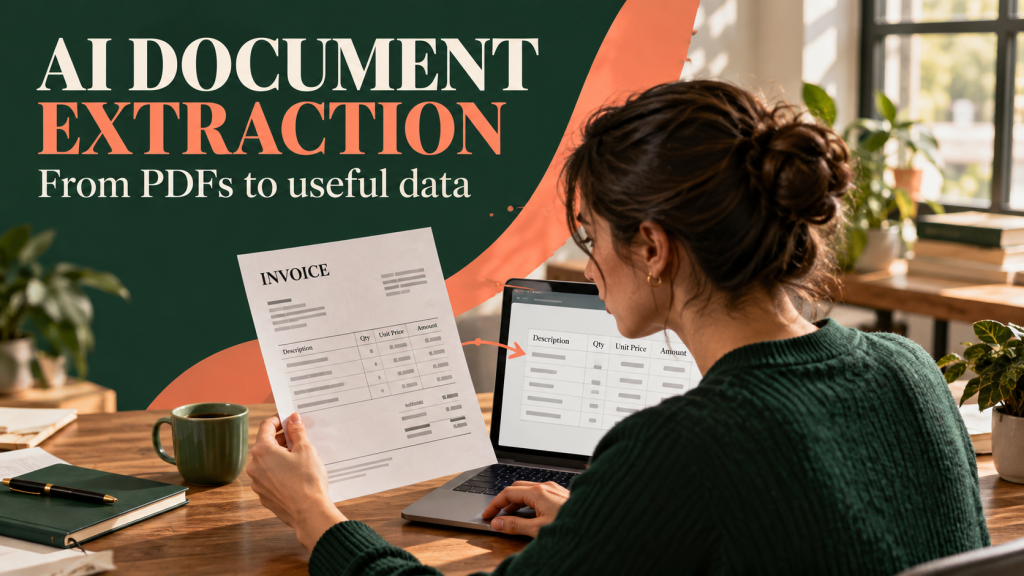
A stack of invoices, forms or scanned PDFs can contain useful information, but copying each date and amount into a spreadsheet is slow. AI document extraction can turn those pages into searchable text and structured fields. The hard part is knowing which fields are correct.
This guide explains the whole path: choose the right document, capture it clearly, extract text and layout, map fields to a schema, validate uncertain values and preserve a way back to the original page. It also shows when ordinary OCR is enough and when more advanced document understanding helps.
Last reviewed: October 5, 2026. Product features, supported formats and privacy rules change. Check current provider documentation before deploying a workflow.
What is AI document extraction?
AI document extraction is the process of converting information in a document into text or structured data that another system can use. The input may be a scanned image, photo, PDF, form, receipt or contract. The output might be plain text, a table, fields such as invoice number and total, or a searchable index with page references.
Basic optical character recognition (OCR) identifies characters. A document-understanding system also tries to preserve relationships: which value belongs to which label, which cells form a table, and which heading starts a section. Generative AI may help interpret unusual formats or answer questions over extracted text, but its answers require source checks.
| Method | Typical output | Best use |
|---|---|---|
| OCR | Recognized words and positions | Making a clear scan searchable |
| Layout analysis | Reading order, headings, tables and figures | Preserving page structure |
| Field extraction | Named values such as date, vendor and total | Moving repeated forms into a database |
| Question answering | Answer with supporting source location | Finding a specific detail across documents |
These methods often work together. Google Cloud Document AI describes OCR, layout and extraction capabilities. Microsoft’s layout documentation describes structural elements such as pages and tables.
Start with the output you actually need
Do not begin by asking a tool to “read everything.” Decide whether the goal is a searchable PDF, a spreadsheet of line items, a few verified fields or a source-backed answer. Each goal needs a different schema and review process.
- For an archive, preserve readable text, page numbers and the original image.
- For accounts payable, capture vendor, invoice number, date, currency, tax and total, then validate the arithmetic.
- For research, retain section headings and citations so the source can be found later.
- For a form, capture fields and checkboxes while keeping blank, unclear and not-applicable values distinct.
Define the exact fields, acceptable formats and error policy first. A system should return “unclear” for a value it cannot read instead of inventing a plausible one.
A practical seven-step workflow
1. Sort and classify the files
Separate document types before extraction. An invoice, receipt, contract and handwritten note may need different processing and validation rules. Record file name, source, page count and date received. Keep a stable identifier so every extracted row can be traced to its original file.
2. Capture a readable source
For paper documents, use even lighting, a flat page and a straight camera angle. Avoid shadows, cropped edges, glare and compressed screenshots. If a PDF already contains selectable text, compare direct text extraction with OCR rather than assuming the page needs to be re-scanned.

3. Extract text, layout and candidate fields
Run OCR or a document parser, then request the fields your workflow needs. Keep the raw text and page coordinates as well as the cleaned value. For example, an extracted total of “1,280.00” is easier to review when a reviewer can jump to the exact line on page two.
A layout-aware system can help preserve tables and headings that plain OCR flattens. Amazon Textract documents table elements such as cells, headers and merged cells. That structure matters when columns such as quantity and unit price must remain attached to the right row.
4. Normalize without hiding the original
Convert dates to one format and amounts to one numeric representation, but keep the original string beside the normalized value. “03/04/26” is ambiguous without a locale. A currency symbol may be missing from one page but shown on another. Do not make a silent assumption when the document is unclear.
5. Validate the important fields
Use rules appropriate to the document: does the invoice subtotal plus tax match the total? Is the due date after the invoice date? Does the line-item sum match the header? Are mandatory fields present? A confidence score is useful for routing review, but it is not proof that a high-scoring value is correct.
6. Send uncertain cases to a person
Create a review queue for low-confidence fields, conflicting totals, unusual layouts and values that trigger business rules. Show the source crop next to the proposed value. Let the reviewer correct it and record the correction rather than forcing them to retype the entire document.
7. Export with provenance
Write validated data to a spreadsheet, database or downstream app. Include the source identifier, page number, extraction time, review status and any corrected value. Keep a path back to the original document. That trail makes later audits and error correction possible.
Worked example: one invoice, several checks
Imagine a two-page invoice with a vendor name, issue date, three line items, tax and a grand total. The extraction system proposes: subtotal $400, tax $40 and total $440. Those numbers reconcile. But the invoice number contains a character that could be the letter O or the digit 0. The arithmetic check cannot resolve that ambiguity. A reviewer must compare the proposed value with the source image or another approved record.
Now imagine the line-item table continues onto page two. A plain text dump might list the last amount after a footer and break the relationship with its description. A layout parser that preserves table cells may do better, but the exported rows still need checking. Good extraction is a combination of automation and targeted human review.
Extract vendor, invoice number, invoice date, currency, line items, subtotal, tax and total. Return each value with page number and a short source quote. Mark illegible or ambiguous characters as “needs review.” Do not guess. Show arithmetic checks separately from extracted fields.
What usually goes wrong?
- Cropped or blurry capture: The model never sees part of the page.
- Wrong reading order: Multi-column documents are flattened into confusing text.
- Table drift: An amount is attached to the neighboring row or column.
- Handwriting: Personal style, faint ink or corrections are misread.
- Similar characters: O and 0, I and 1, or decimal separators are confused.
- Missing context: A date or amount is copied without its currency, label or page.
- Overconfident interpretation: A language model fills an unreadable gap with a plausible answer.
The solution is not simply a larger model. Better captures, explicit schemas, source pointers and a review path often matter more. Our AI hallucinations guide explains why a fluent answer can still be unsupported.

How to measure extraction quality
An accuracy claim needs a test set. Choose a representative sample of real document types, image qualities and layouts. Have people create a reviewed reference answer for the fields that matter. Compare each extracted value against that reference rather than judging a few polished demos.
Track separate measures for different tasks. Text recognition accuracy is not the same as field accuracy. A system can read every word correctly yet attach a number to the wrong label. A table can look reasonable while one merged cell shifts the rows.
| Measure | Question it answers | Why it matters |
|---|---|---|
| Field accuracy | Was each required value correct? | Directly reflects usable output. |
| Missing-field rate | How often did the system fail to return a required field? | Shows where review work remains. |
| False-confidence rate | How often was a wrong value marked as certain? | Highlights dangerous silent failures. |
| Review time | How long does a person spend per document? | Measures operational value. |
| Traceability | Can a reviewer locate the source for each value? | Enables correction and audits. |
A pilot that saves typing but doubles the time spent searching for errors is not successful. Measure the entire workflow: capture, processing, review, correction and export.
Choose a tool by document type, not the longest feature list
A searchable PDF from a clear scan may need only OCR. Repeated invoices or forms may benefit from specialized field extraction. Research papers, manuals or complex reports may need layout-aware parsing that preserves headings and references. Mixed collections require classification before any of those steps.
Official product documentation is a useful starting point: Google Document AI, Azure AI Document Intelligence layout and Amazon Textract document analysis describe different capabilities. Compare them with your own sample documents, privacy needs, review interface and export requirements. Do not assume a feature is available in every region or plan.
A general chatbot can help define a schema, explain extracted text or draft validation rules. But do not assume it has a document-processing pipeline or permission to handle confidential files. Check the exact tool and account before uploading.
Privacy and security before upload
Invoices, applications and contracts may contain names, addresses, account numbers or other sensitive information. Use the minimum document needed for the task. Mask irrelevant fields where possible, and check whether a service retains files, logs requests, shares data with subprocessors or uses content to improve models.
For work documents, follow the organization’s approved storage and access rules. Limit who can view originals and extracted data. Decide when files should be deleted and how corrections are recorded. A copied spreadsheet can spread sensitive information more widely than the original folder if permissions are loose.
When the result will feed a high-impact decision, require a qualified person to review both the source and the extracted value. Document extraction can organize evidence; it should not silently make the decision.

A prompt pattern for one-off document questions
If you use an assistant to answer a question about a permitted document, make the required evidence explicit. The prompt below can help with an ordinary, non-sensitive file.
Answer this question using only the attached document: [question]. Quote or point to the page and section supporting each factual claim. If the answer is not present or the scan is unclear, say so. Separate extracted text from your interpretation, and do not infer missing names, dates or amounts.
This is closely related to retrieval-augmented generation: the answer should stay tied to identifiable source material. Yet a citation is useful only if the source text was extracted correctly, so check the original page for important claims.
A short checklist before sending data downstream
- The right document type and file version were processed.
- No page was cropped, rotated incorrectly or omitted.
- Each required field has a source location.
- Totals, dates and identifiers pass the relevant validation rules.
- Ambiguous values are marked for review rather than guessed.
- A person approved high-impact fields and corrections are logged.
- The export includes source ID, review status and an owner.
If any item fails, return the document to review instead of treating a plausible-looking spreadsheet as verified data.
Frequently asked questions
Is AI document extraction the same as OCR?
No. OCR recognizes text in an image. Document extraction may also identify layout, tables, fields and relationships between labels and values. Many systems use OCR as one stage of a larger pipeline.
Can AI extract tables from PDFs?
Yes, layout-aware products can detect rows, columns and cells, including some merged or irregular structures. Tables still need review because reading order and cell boundaries can fail, particularly in low-quality scans.
Can it read handwriting?
Some tools support handwriting, but results vary with legibility, language, background and writing style. Test with your actual samples and route uncertain words to human review.
What is a confidence score?
It is a model’s estimate associated with an extracted result. It can help prioritize review, but it is not an independent guarantee. Test whether low and high scores correspond to real error rates in your document collection.
Can I use a chatbot to extract private documents?
Only if the particular service and account are approved for those documents and your privacy rules allow it. Review retention, access and data-use settings first. Redact details that are not required for the task.
How do I prevent made-up values?
Require exact source locations, allow “unclear” as an output, and validate important fields against the original file. Use arithmetic and format checks where appropriate. A prompt helps, but review and system design are the stronger safeguards.
The practical takeaway
AI document extraction works best when every value has a path back to the page it came from. Start with a small sample, define the fields you need, measure real errors and make uncertain cases easy for a person to review. That turns a pile of PDFs into useful data without pretending the computer read every page perfectly.
For drafting extraction instructions or explaining a verified result, you can compare responses in Unlimited AI. Check the capabilities and privacy rules of the specific tool before sharing a document.