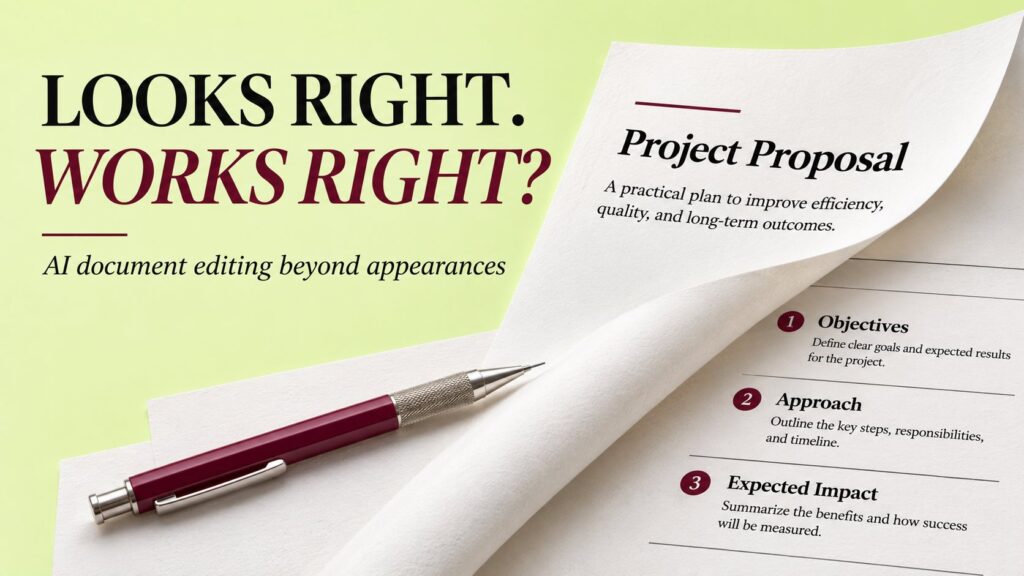
You ask an AI assistant to turn section titles into headings and tidy a numbered list. The returned Word file looks cleaner. Then you try to navigate by heading, add another list item or update the document—and discover that the useful structure is missing.
That hypothetical example captures an important problem in AI Word document editing: a page can look right without behaving right. Microsoft’s recent WordEval research offers a more precise way to think about success.
Try this distinction first: text, appearance and behavior
A document has several layers. The words convey information. The layout makes it readable. The underlying objects determine what happens when someone continues editing it. A good result may need to preserve all three.
For example, a line made larger and bolder can resemble a heading. That alone does not establish that it has the intended heading style. Likewise, a typed number at the start of a paragraph can resemble a numbered list without providing automatic numbering.
A useful acceptance rule: check that the requested change works in the editable file and that the surrounding content still behaves as expected. A screenshot is one part of the review.
What WordEval adds to the conversation
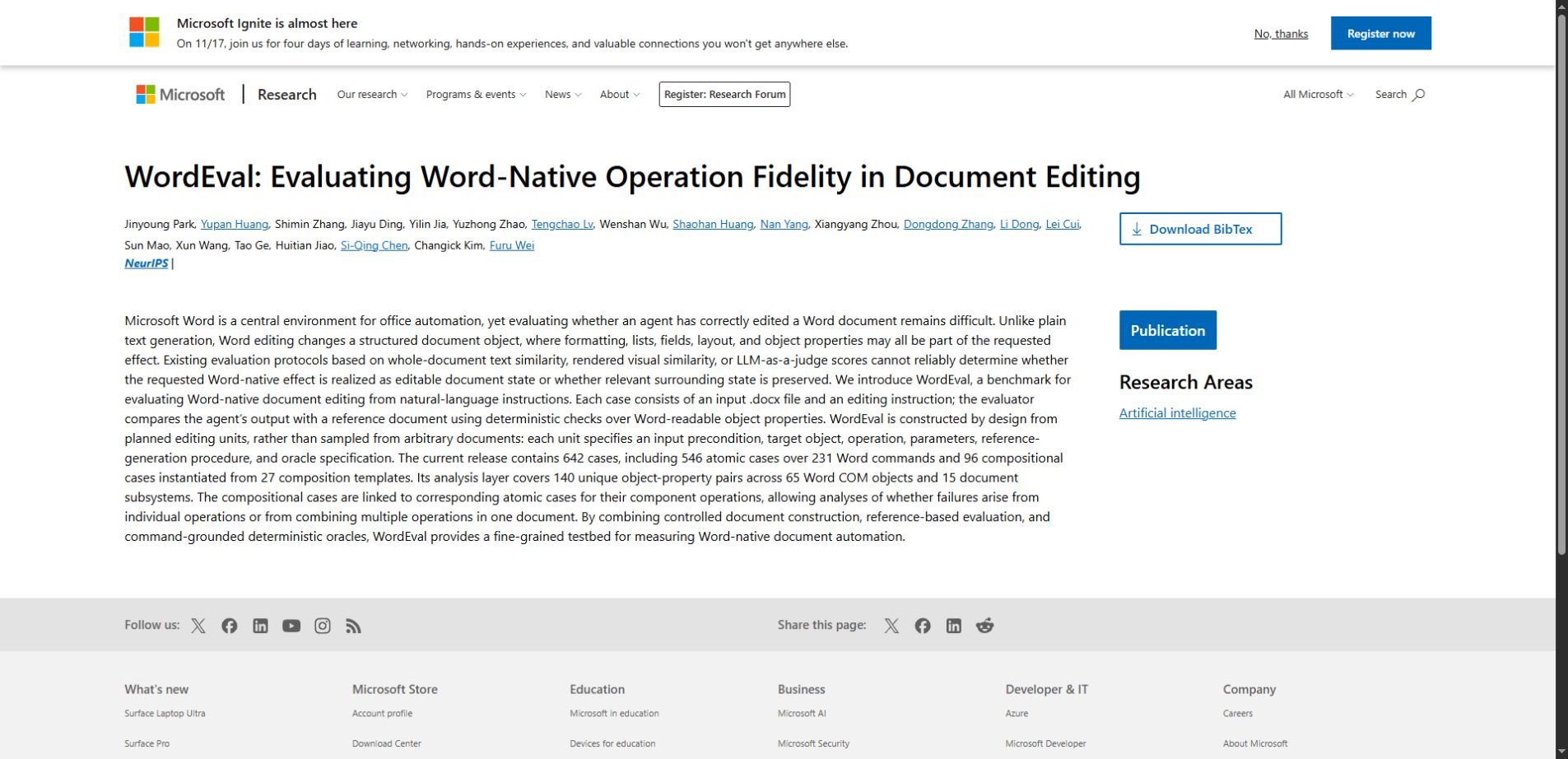
The WordEval publication from Microsoft Research describes a benchmark built around an input .docx file, a natural-language editing request and a reference document. Instead of relying solely on text or visual similarity, its evaluator checks Word-readable object properties using deterministic rules.
The release describes 642 cases: 546 individual-operation cases and 96 cases combining operations. Its purpose is to measure whether the requested document effects occur while relevant surrounding state is preserved. This article explains that idea; we have not run the benchmark or independently measured any assistant’s score.
For an everyday user, the lesson is practical. When you ask an assistant to edit a file, define what the result should do. “Make it look professional” leaves much more room for interpretation than a request naming the paragraphs, styles and content that should remain intact.
A fictional report with three editing requests
Imagine a four-page project report called the Meadow Update. It has section titles, a numbered action list and a short table. The following is an original example for reviewing edits, rather than a case taken from WordEval.
You want the titles to use a consistent heading level, the action list to continue numbering correctly and the table to fit more neatly. You also want the figures, comments and wording outside those changes preserved.
Request one: make the titles real headings
Name the intended paragraphs and specify the heading level. Do not assume that making a line visually prominent gives it the structure needed by Word’s navigation features.
Microsoft’s heading guidance recommends applying heading styles. Those styles also support tasks such as creating a table of contents and reorganizing a document. That is why the distinction between styling an object and merely imitating its appearance matters.
To inspect the fictional report in Word for Windows, open the Navigation pane using Ctrl+F or View → Navigation Pane, then select Headings. Microsoft explains that headings in the document body appear there when heading styles are applied; headings in tables, text boxes, headers and footers are excluded. Behavior differs on Mac and the web.
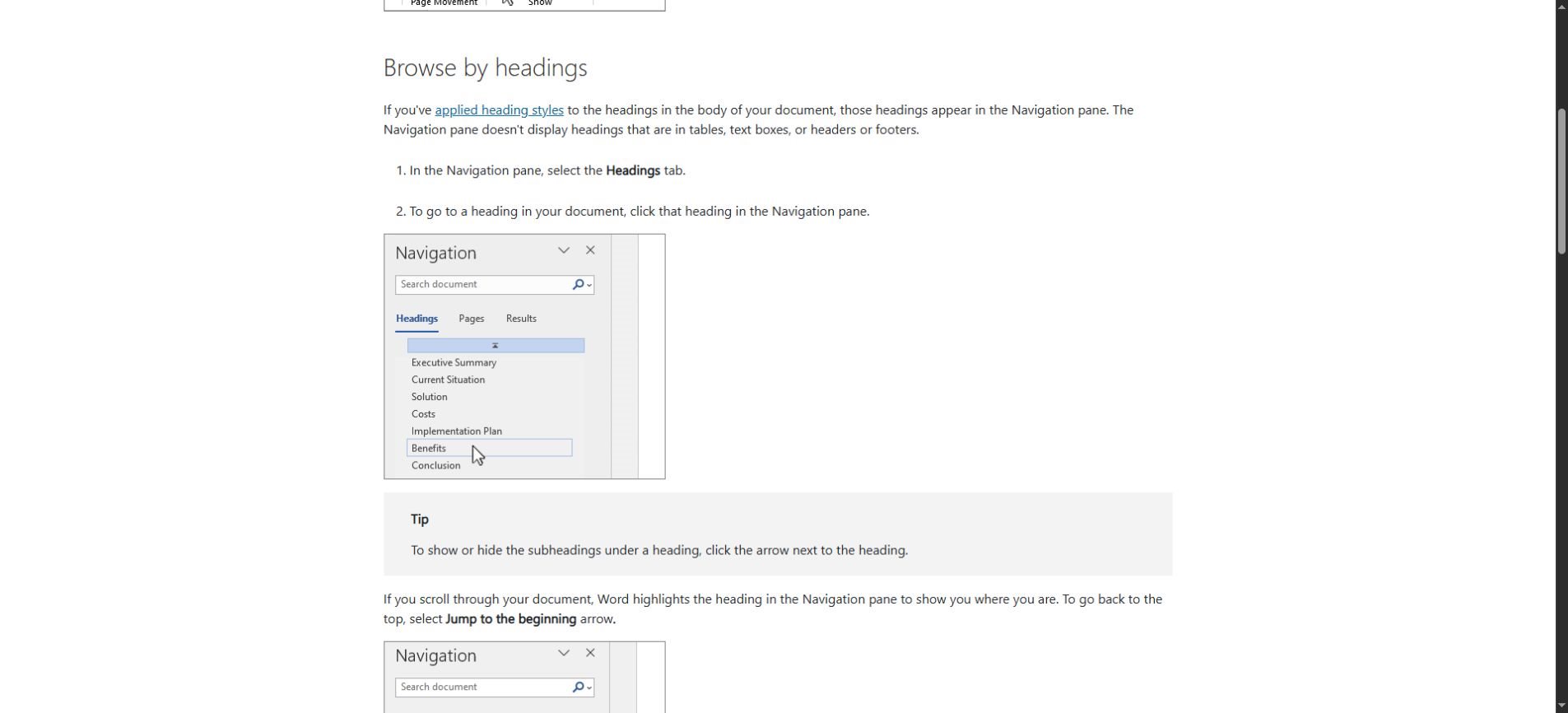
Check the intended titles and their hierarchy rather than demanding that every bold line appear. A report may contain captions, callouts and labels that should remain outside its main outline.
Request two: preserve list behavior
For the action list, say whether numbering should continue from an earlier list or restart. State whether the change applies to one list or all lists. That prevents a local cleanup request from turning into an unintended document-wide transformation.
On a review copy, add a temporary item between two existing items and inspect the sequence. Then undo the test. This simple behavior check is more informative than observing that the visible numbers happened to be correct when the assistant finished.
Request three: improve the table without losing information
Specify the intended adjustment, such as changing column widths while keeping row order and cell contents. If the assistant cannot perform the requested operation, it should report that limitation rather than replace the table with an image that merely looks similar.
Inspect the table’s values and confirm that its contents remain editable. A visually attractive table is not an acceptable result if a number changed or a row disappeared. Record the exact discrepancy so the next correction can stay focused.
What to inspect after the edit
The following checklist is an editorial review aid. It is not WordEval’s scoring specification or a substitute for a full benchmark evaluation.
| Area | Check the visible result | Check the editable behavior |
|---|---|---|
| Headings | Consistent size and spacing. | Intended heading style and hierarchy. |
| Numbered lists | Correct visible sequence. | Correct continuation or restart when edited. |
| Tables | Readable widths and alignment. | Editable cells with original values preserved. |
| Surrounding text | No missing paragraphs or unexpected rewrites. | Unrequested elements remain intact. |
| Page layout | No clipped text or awkward overflow. | Sections and reusable elements still work. |
Review the saved file in the application where it will be used. A preview from another tool can help reveal layout problems, but the editable result deserves its own check.
Write requests that can be checked
A precise instruction does not need to be long. It needs a target, a desired operation and clear boundaries. This example describes the Meadow Update task without giving the assistant permission to rewrite the entire report.
Example editing request: Apply Heading 2 to the paragraphs “Progress,” “Open Questions” and “Next Steps.” Continue the existing action-list numbering. Adjust the table’s column widths for readability. Preserve all wording, figures, cell values and comments outside those changes. Return an editable .docx and list anything you could not complete.
If a request contains several operations, review them separately. A successful table adjustment can distract from a broken list. WordEval’s distinction between individual and combined operations is relevant here: doing several things in sequence can introduce failures that are easy to miss in a single polished output.
Ask for a short change summary as a guide to inspection. Treat it as the assistant’s account of its work, not proof that every change succeeded. The file is the thing you are accepting.
Preservation is part of success
Document editing usually begins from existing work. That changes the definition of quality. Adding a correct heading while removing a comment or changing an unrelated amount is still a failed edit.
Before a significant revision, retain the original file and identify the parts that matter most: wording, numbers, comments, links, captions or section structure. Use a copy when experimenting so you can compare the result and recover cleanly.
This principle applies beyond Word. Our guide to testing AI assistants uses fictional material with known answers. A small sample document with known styles, lists and tables can serve a similar role when evaluating an editing workflow.
What the benchmark does not establish
A benchmark describes a defined set of tasks and checks. It does not guarantee that an assistant will handle every document template, application version or complex report. Passing a known case and completing your actual workflow are related but different outcomes.
The public research description also does not, by itself, provide a current ranking of all consumer AI document tools. Avoid choosing a product based on a benchmark name without inspecting the evaluated configuration and results.
For teams, measure review effort as well as initial editing time. A tool that makes a quick first pass may still create substantial checking work. The useful outcome is a reliable document delivered with less total effort.
A short acceptance routine
- Open the saved .docx in the intended application.
- Check each requested change against the original instruction.
- Test the relevant behavior on a review copy.
- Compare important content and surrounding elements with the original.
- Inspect the layout, including page breaks, tables and figures.
- Keep the original until the revised document is accepted.
You can keep this routine small for a simple edit. Focus on the behavior the task depends on, and broaden the review when the document or requested transformation is more complex.
Common questions about WordEval
Is WordEval an AI writing app?
No. The research describes an evaluation benchmark for document-editing behavior. It is not a promise that installing a new writing interface will automatically fix existing Word files.
Can a screenshot prove a Word edit is correct?
A screenshot helps assess appearance. It cannot establish every property of the editable file, such as whether a list continues correctly after an insertion.
Does a heading always appear in the Navigation pane?
In Word for Windows, the documented behavior applies to headings in the document body with heading styles. Microsoft lists exclusions, including headings inside tables and text boxes. Check the guidance for your platform.
The result you actually want
The most useful AI edit leaves you with a document you can keep working on. Its text should be right, its layout should be readable and its objects should behave as intended.
WordEval puts a research framework around that distinction. For users, the immediate improvement is simpler: describe the operation, preserve the boundaries and test the editable result before accepting it.